
What makes it useful
It knows your whole project. The Agent has direct access to all your Amadora entities — your topical map, optimization plans, prompts, citations, data sources, visibility metrics, and more. It can pull this data, analyze it, and act on it without you exporting anything. It can reach into Google Search Console. If you’ve connected GSC, the Agent gains 7 purpose-built skills for organic search analysis — traffic overviews, winners and losers, CTR opportunities, keyword cannibalization, indexing checks, and full composite reports. (More on this below; a dedicated article covers each skill in depth.) It produces real deliverables. The Agent doesn’t just answer in chat. It can generate files, documents, reports, and lists you can download and share — custom action plans, prompt sets, visibility summaries, and more.What you can do with it
Here are the three things people reach for the Agent for most — with example prompts you can copy, paste, and adapt.1. Extract your data and build custom reports, plans, and lists
Turn your raw Amadora data into something you can actually act on. Ask the Agent to slice your visibility metrics, summarize citations, or draft an action plan, and it’ll hand you a clean document. Try prompts like:- “Pull my visibility metrics for the last 30 days and build a summary report I can share with my team.”
- “Create a prioritized action plan based on my current optimization plan.”
- “Give me a list of every prompt where a competitor is cited but we’re not.”
- “Export my top-cited sources into a clean list with the topics they appear under.”
2. Generate, set up, and reorganize prompts
Managing prompts by hand is slow. The Agent can create new prompts, structure them, and reorganize what’s already in your project so your coverage stays clean and comprehensive. Try prompts like:- “Generate 15 new prompts covering gaps in my current topical map.”
- “Review my existing prompts and group them by topic — flag any duplicates.”
- “Suggest prompts that target buyer-intent questions for my product.”
3. Reveal insights from your visibility and Google Search Console data
This is where the Agent shines. It combines what’s happening in AI search (your Amadora visibility) with what’s happening in traditional Google search (GSC) to surface insights you’d otherwise miss.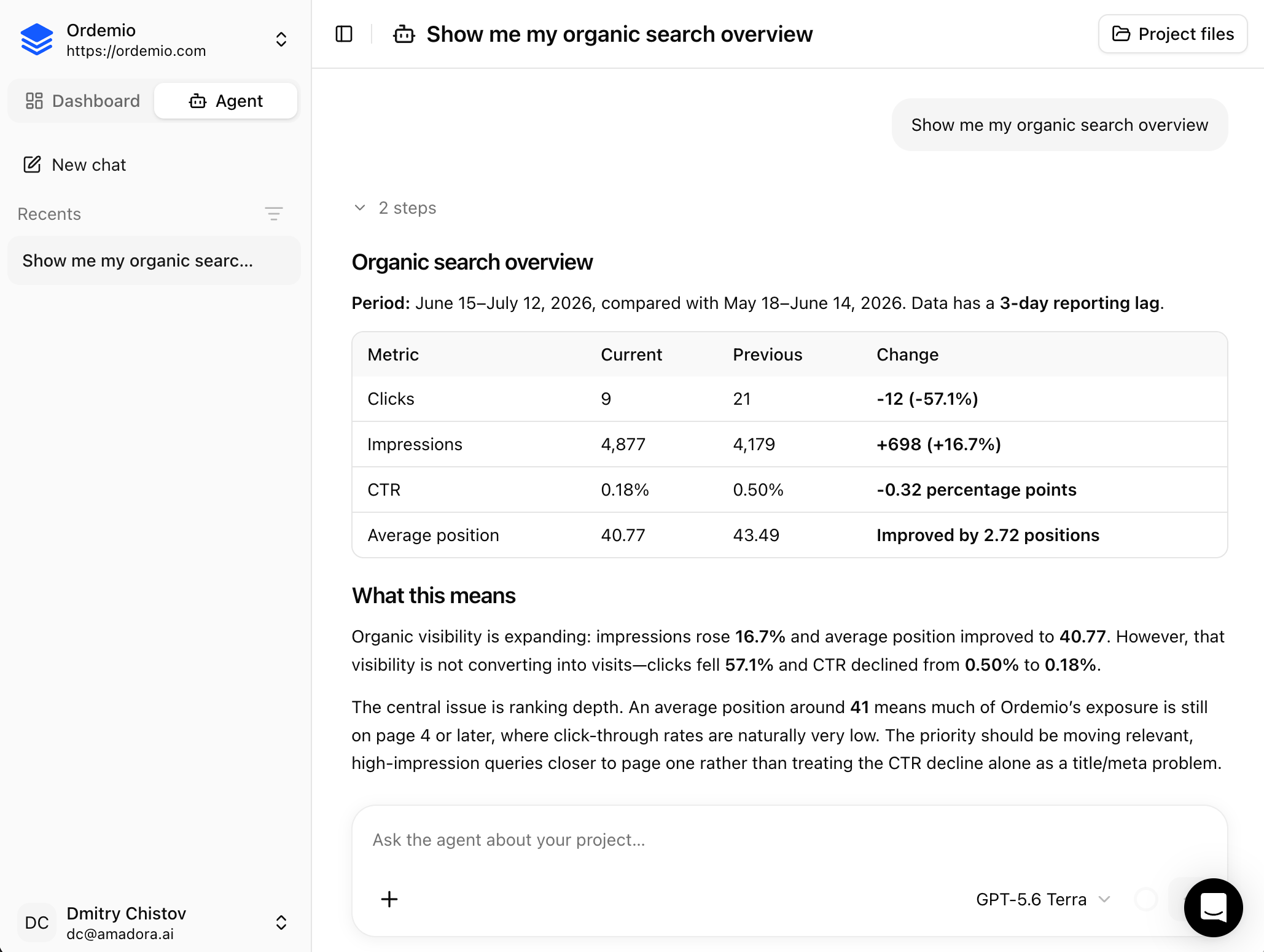
- “Show me my organic search overview and tell me what’s driving the change.”
- “Which queries are ranking on page 2 but under-performing on clicks? Where should I focus?”
- “Are any of my pages competing with each other for the same keyword?”
- “Compare my AI visibility with my organic search performance — where are the biggest gaps?”
The Google Search Console skills (quick overview)
Once GSC is connected, the Agent can answer organic-search questions using 7 built-in skills:- Performance overview — a site-wide pulse check on clicks, impressions, CTR, and average position, with period-over-period trends.
- Movers — exactly which queries or pages gained or dropped the most, ranked by impact.
- CTR opportunities — pages that rank reasonably well but under-click, where a better title or snippet could win clicks.
- Cannibalization — queries where several of your own pages compete against each other.
- Entity details — a deep drill-down into a single query or page and what it’s related to.
- URL inspection — indexing status for specific URLs, flagging what’s not indexed and why.
- Full report — a one-shot composite covering overview, winners/losers, CTR gaps, and cannibalization together.
How to get started
Open the Agent. The Agent tab is in the top-left corner of your project. Switch to it and start typing your question — no setup required. Connect Google Search Console (optional but recommended). To unlock the organic-search skills, go to Brand Settings → Connections and connect your Google Search Console account, then select your property. Once connected, the Agent can pull your GSC data on demand.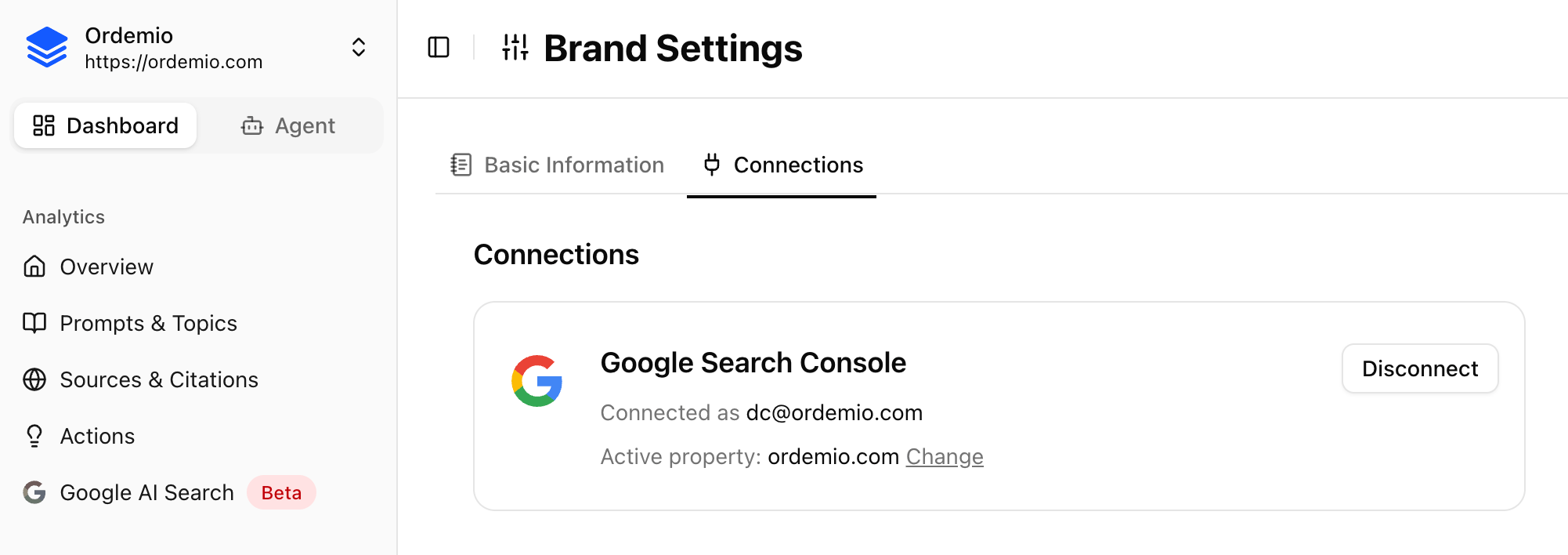
A note on cost
Each reply is billed in credits based on how much work it takes — the complexity of the task, how many tools the Agent uses, and how long the conversation has grown. A quick question can cost as little as 0.1 credit, while a deep, multi-tool analysis may run to several credits per reply. Simple asks stay cheap; heavier analysis costs a bit more.The best way to understand the Agent is to try it. Open the Agent tab, ask it something you’d normally dig through dashboards for, and see what it hands back.