
1. Your Credit Balance
You can view your real-time balance by navigating to the Credits tab in your dashboard sidebar. Your total balance is made up of two types of credits: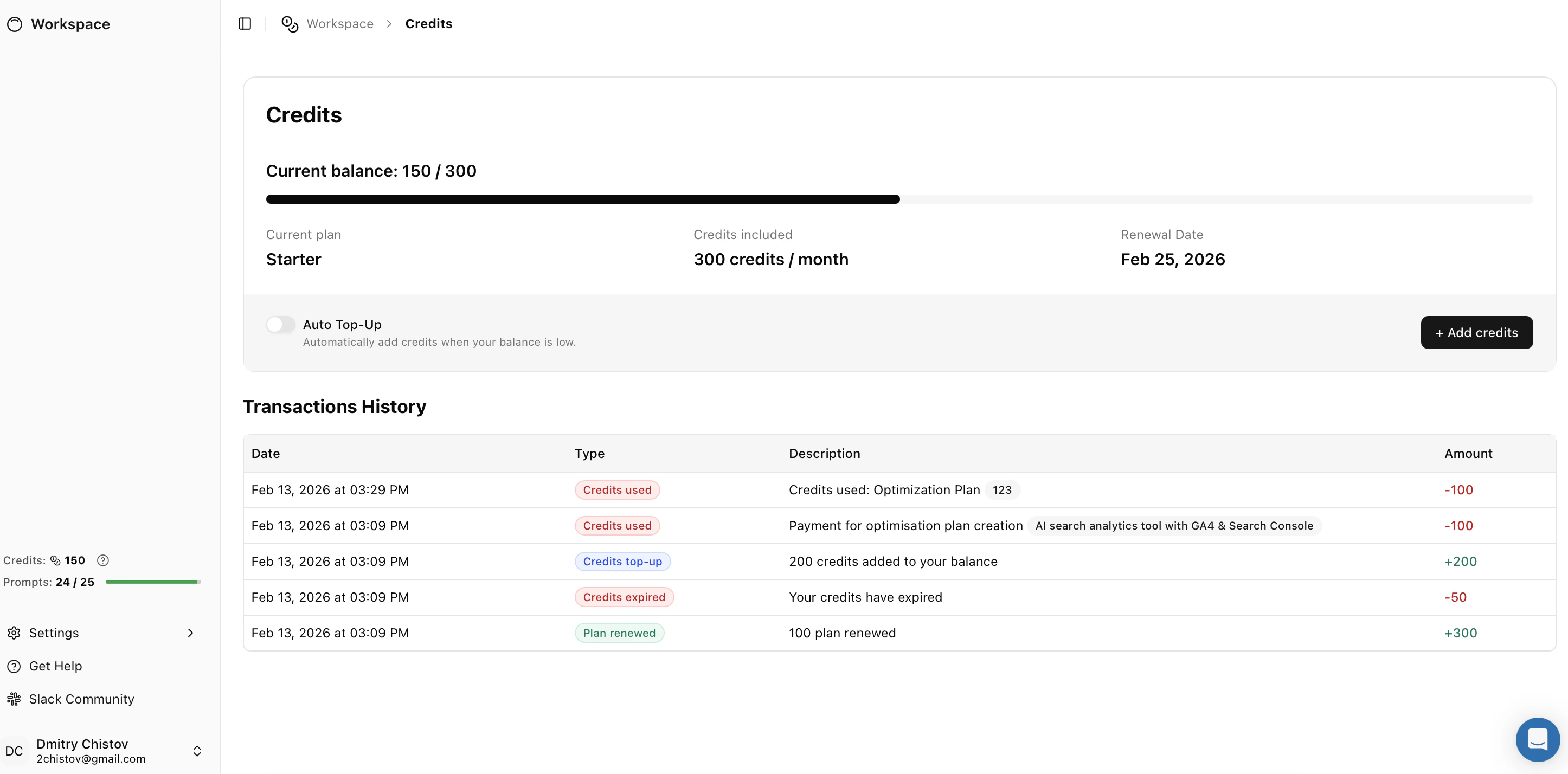
- Plan Credits: These are the credits included with your monthly subscription (e.g., 300 credits/month). These renew automatically on your billing date.
- Top-Up Credits: These are additional credits you purchase separately. They are added to your balance immediately and are used when you exceed your monthly allowance.
2. Credit Usage & Costs
Credits are the currency used to perform high-value actions within the platform.- Optimization Plans: Creating a comprehensive Optimization Plan consumes 100 Credits per plan.
- Includes: Deep-dive analysis, Ideal Model generation, and the full “Actions” roadmap.
Note: Basic tracking and monitoring of your keywords do not consume credits; credits are only deducted when you generate new strategic assets.
3. Adding More Credits
If you run out of credits mid-month, you can instantly top up your balance without upgrading your entire subscription.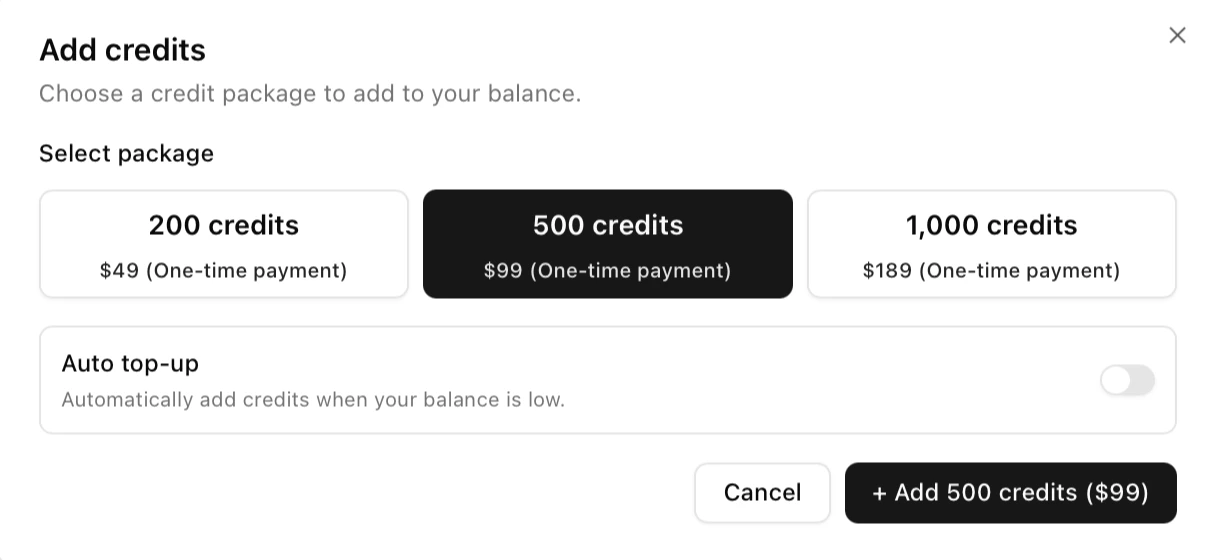
- Go to the Credits page.
- Click the + Add credits button in the top right.
- Select a one-time package:
- 200 Credits: $49
- 500 Credits: $99 (Best Value for small teams)
- 1,000 Credits: $189 (Best Value for agencies)
4. Auto Top-Up
To ensure your workflows are never interrupted—especially if you have scheduled optimizations running—you can enable Auto Top-Up.- How it works: When your balance falls below a safe threshold, the system will automatically purchase your preferred credit package.
- Enable/Disable: You can toggle this setting On or Off directly from the main Credits dashboard or within the “Add credits” modal.
5. Transaction History
For full transparency, the Transaction History table at the bottom of the Credits page provides a detailed audit log of every credit movement.- Usage: Shows exactly which project or plan consumed credits (e.g., “-100 Credits: Optimization Plan created”).
- Renewals: Shows when your monthly plan credits were added (e.g., “+300 Credits: Plan renewed”).
- Purchases: Shows manual or automatic top-ups.