
The Amadora plugin turns Claude Cowork into an AI-search analyst sitting next to you. It connects Claude to your Amadora account, then layers four ready-made skills on top — so you can ship weekly visibility reports, multi-week trend decks for clients, AI-citation content briefs, and outreach lists for link-building, all by typing a single command.
This guide walks you through installing the plugin, gives a short overview of the underlying Amadora MCP, and explains what each skill does, when to reach for it, and what you actually get out.
What’s in the plugin
The plugin bundles two things:- The Amadora MCP — a read-only connector that lets Claude query your Amadora account (projects, prompts, citations, competitors, audits, optimization plans).
- Four skills — opinionated workflows that combine MCP data with templates, widgets, and file outputs:
Installation
The plugin ships as a single.plugin file. To install it in Claude Cowork:
- Download plugin from Amadora AI
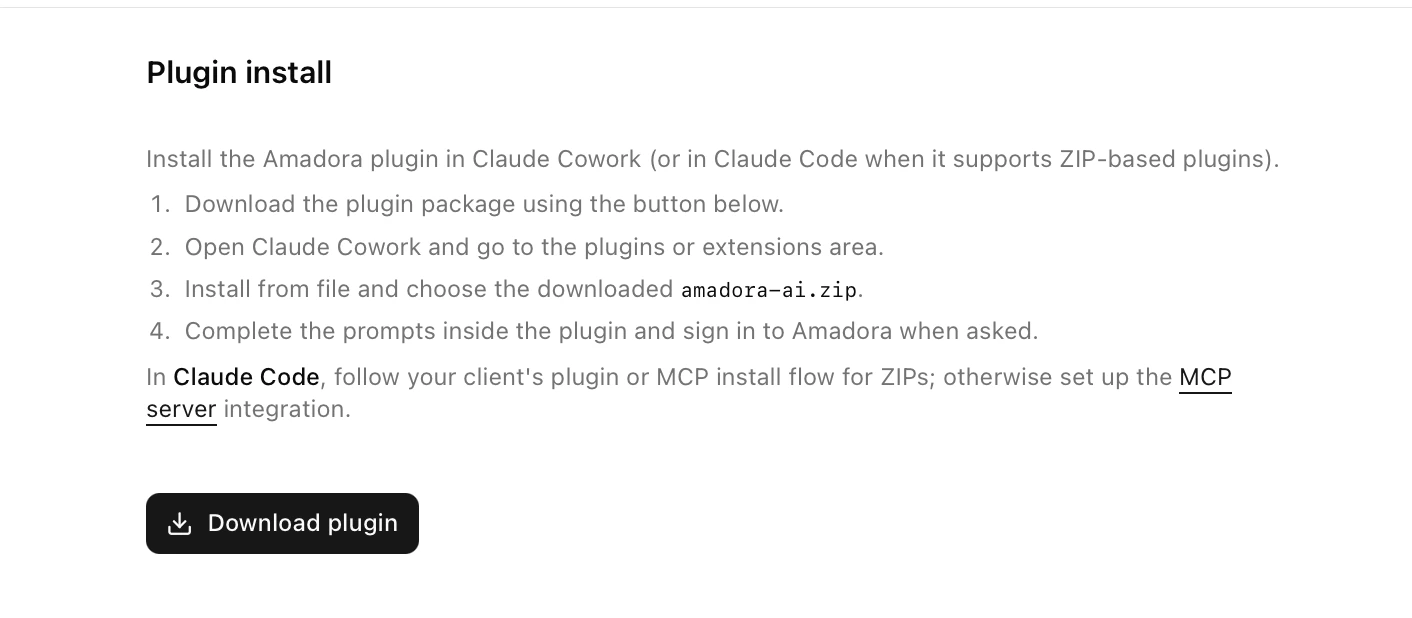
- Open Claude Cowork.
- Go to Customize > Click + > Create Plugin > Upload Plugin
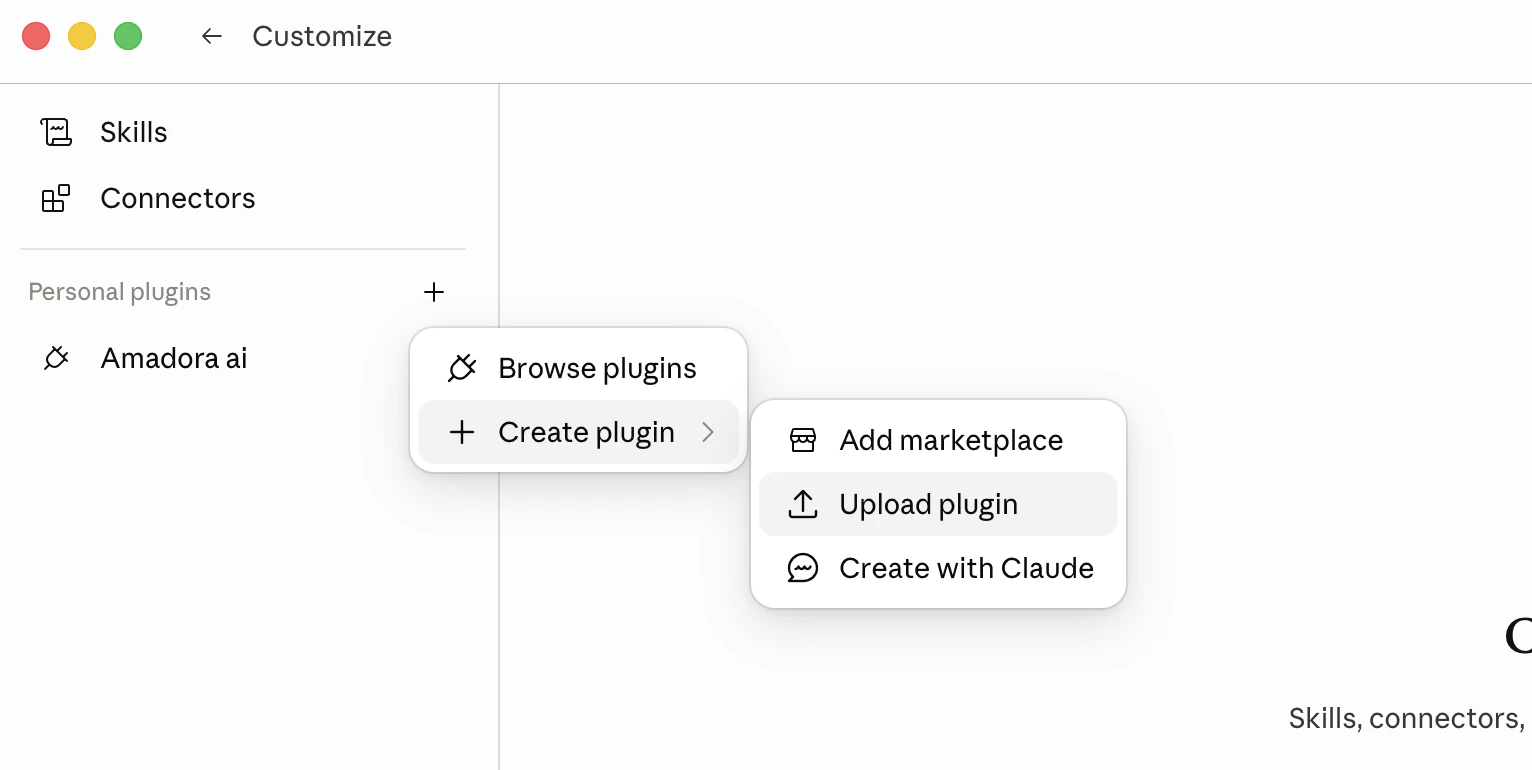
- Click Upload Plugin > Upload the
amadora-ai.zipfile.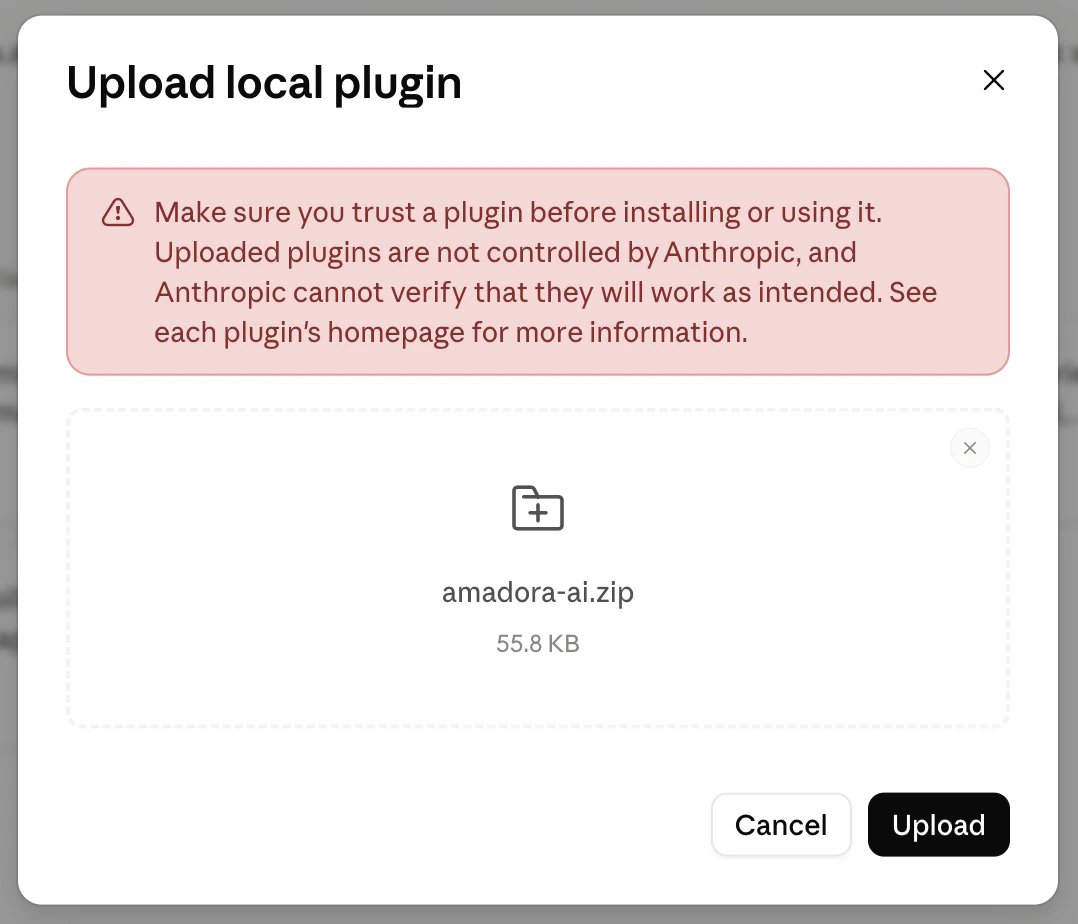
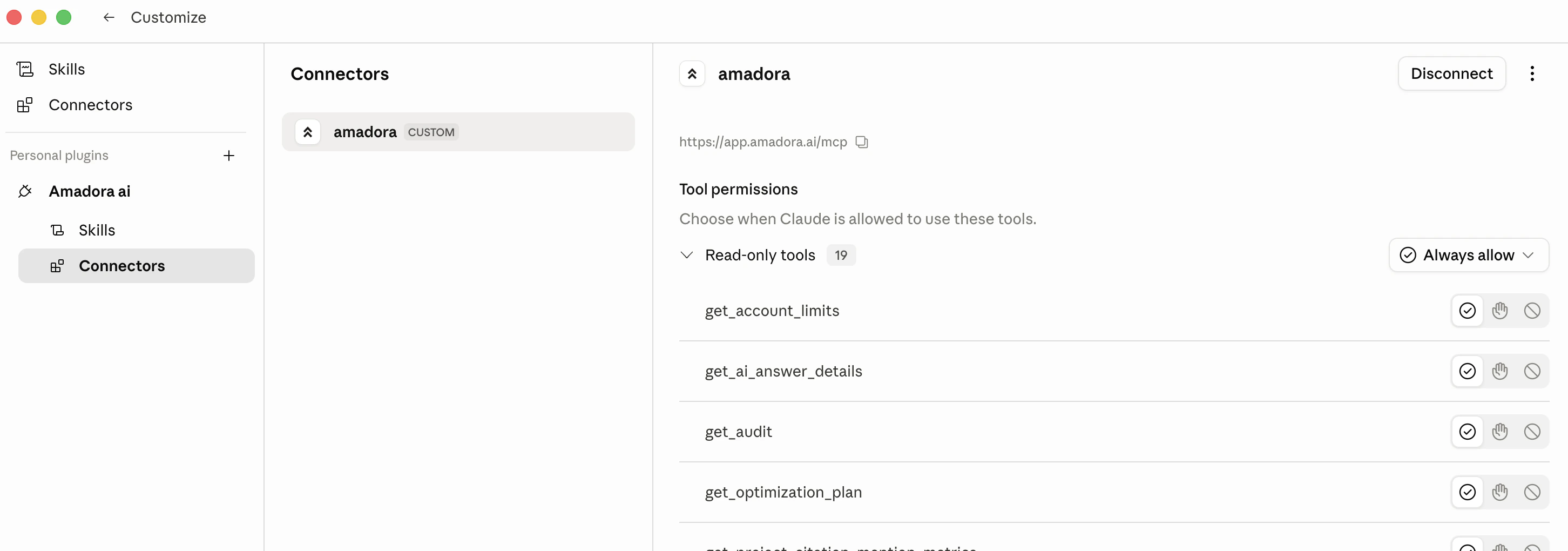
- When prompted, authorize the Amadora MCP by signing in with your Amadora account. This is a one-time OAuth flow — Claude only ever reads your Amadora data, never writes.
- Confirm the plugin is enabled. You should now see the four commands (
/report,/trend,/content,/mentions) available in any Cowork session.\
The Amadora MCP & what it gives Claude
The MCP (Model Context Protocol connector) is the data layer underneath every skill. It’s a read-only window into your Amadora workspace that exposes the same things you see in the Amadora UI:- Projects — one per monitored brand or site.
- Prompts — the tracked questions you want to show up in AI answers for.
- Citations — every URL AI engines linked to in their answers, with site type, page type, domain, and ownership flags.
- Competitors — brands appearing in the same AI answers, with share-of-voice, visibility, and mention position.
- Audits and optimization plans — Amadora’s pre-built reports and AI-generated improvement plans.
Skill: /report & Weekly AI Visibility Report
What it does
Generates a structured weekly visibility report for one of your brands and renders it inline in chat as a single HTML widget. No file is saved — it’s designed for at-a-glance status checks, standups, and client updates you can screenshot.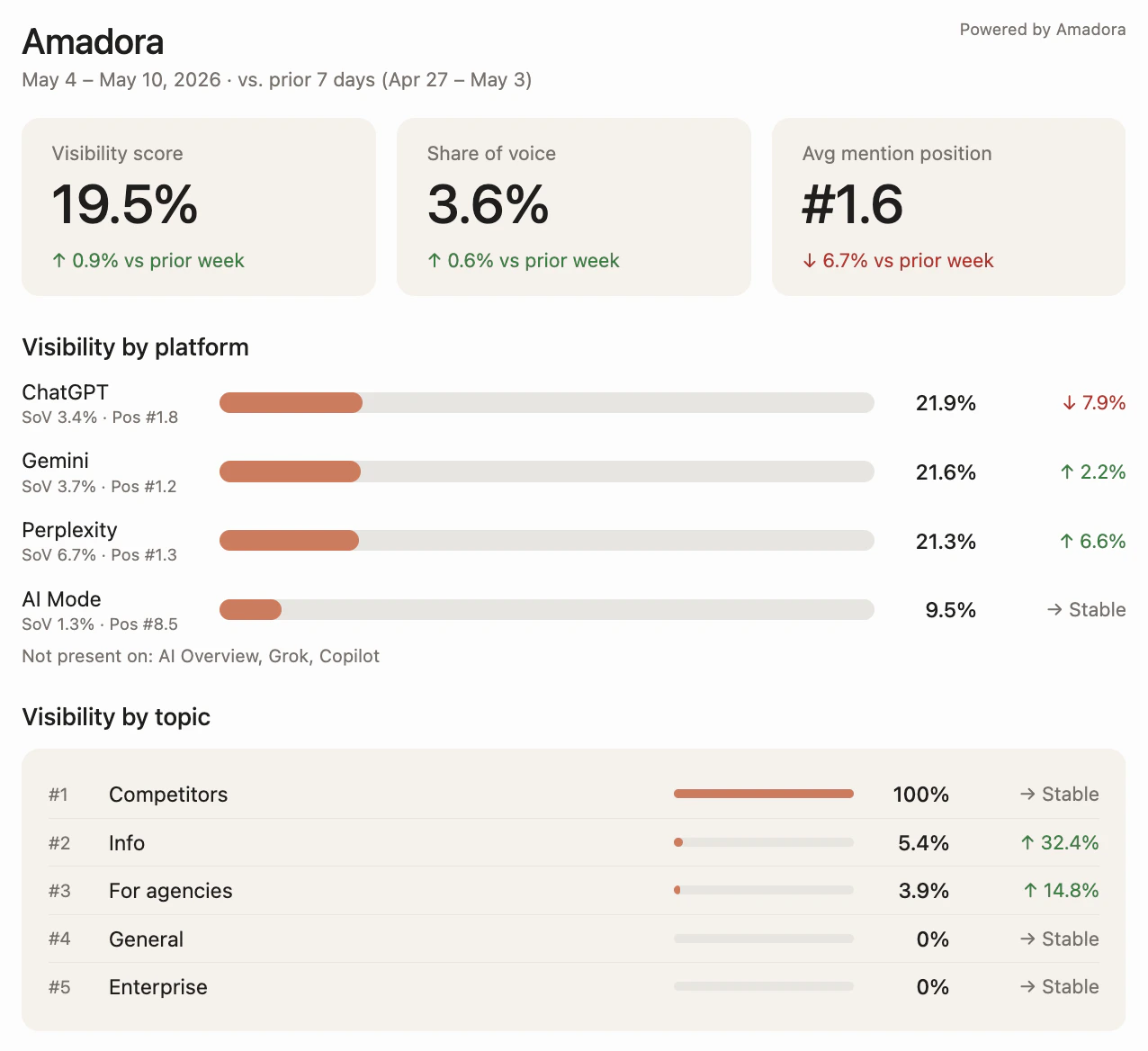
- Three headline KPIs — visibility score, share of voice, and average mention position, each with the week-over-week delta.
- Visibility by AI platform — ChatGPT, Claude, Perplexity, Gemini, Google AI Overviews, broken out with WoW arrows.
- Visibility by topic — each tracked topic with its current score and week-over-week movement.
- AI Citations and Mentions — count of owned AI citations and brand mentions, each with a 30-day sparkline.
When to use it
- Monday-morning status checks — see whether the brand moved up or down across all platforms over the past week.
- Client recap emails — paste a screenshot of the widget straight into a weekly update.
- Investigating a drop — if a KPI is down, the per-platform and per-topic breakdowns tell you immediately where it happened.
- Pre-meeting prep — before a sync with stakeholders, run
/report [brand]to walk in with fresh numbers.
What you get
An inline widget in chat (cream-and-terracotta palette matching the Amadora brand) that’s safe to screenshot and share. No.xlsx or .md file is created — this is the one skill that lives entirely in the conversation.
Example invocations
/report— Claude shows a project picker, you select one./report Amadora— Skips the picker if the brand name uniquely matches a project."How is Ordemio doing in AI this week?"— Natural language also triggers it.
Skill: /trend — Multi-Week Visibility Trend Excel
What it does
Builds a multi-week visibility trend report as a polished Excel workbook saved to your workspace folder. Designed as a client deliverable that proves the work is moving the needle — each row is a topic or prompt, each column is one ISO week, cells are colored on a red → yellow → green heatmap, and a delta column makes the headline number jump off the page. Before the file is written, Claude also renders a topic-level heatmap preview directly in chat so you can sanity-check the numbers before opening Excel.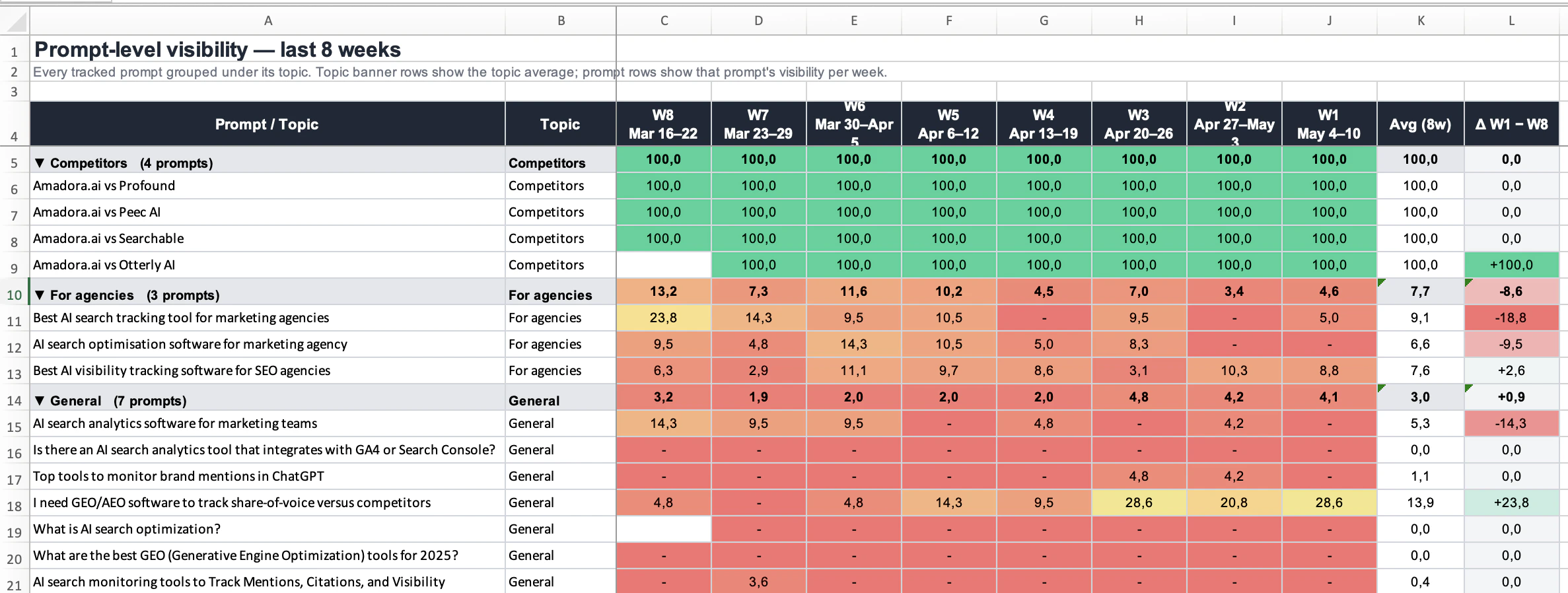
- Summary — headline KPIs across the chosen period.
- Topic Trend — 5-10 topic rows with the heatmap, a delta column, and a multi-series line chart.
- Prompt Detail — every tracked prompt grouped under its topic, same week-by-week heatmap.
When to use it
- Quarterly business reviews — bring a single Excel that tells the whole story.
- Renewal conversations — “Here’s how visibility moved on the topics you cared about over the last 12 weeks.”
- Internal performance reviews — head of marketing wants to see whether the AI-search investment is paying off.
- Investigating a long-term trend — week-over-week is too noisy; trend reports show whether something is actually shifting.
What you get
A single.xlsx saved to the connected workspace folder, named {Project}_Visibility_Trend_{N}wk.xlsx — for example:
Amadora_Visibility_Trend_8wk.xlsxNetReputation_Visibility_Trend_8wk.xlsxOrdemio_Visibility_Trend_8wk.xlsx
Example invocations
/trend— Project picker + period picker./trend 12— 12 weeks, with project picker./trend Amadora 24w— 24-week trend for Amadora, no picker needed.
Skill: /content — AI-Citation Content Planner
What it does
Generates content plans and per-prompt briefs designed to get cited by AI engines (ChatGPT, Claude, Perplexity, Gemini, Google AI Overviews) — not to rank in classic Google SERPs. The killer signal it uses is the query fan-out: the actual search queries the AI ran while composing its answers. Combined with the most-cited URLs and page types per prompt, this lets Claude write briefs that target passage retrieval — the way LLMs actually pick what to cite..png?fit=max&auto=format&n=s7j3SeJgl7b2xP1q&q=85&s=bcc894c7cbffe408f06ae368d8dbc680)
- Project diagnosis → Topic Priority Matrix. Claude pulls your project, ranks topics by lowest owned citation share (i.e. biggest opportunity), and shows them in an interactive widget. You tick the 1-3 topics you want to go deeper on.
- Topic analysis + suggested articles. For each topic, Claude produces a 3-line overview plus a list of 8-15 suggested articles with checkboxes. You select which ones to brief.
- Brief generation. Claude writes a numbered
.mdbrief per selected article into a topic folder, plus an00-OVERVIEW.mdthat summarizes the plan.
When to use it
- Quarterly content planning — figure out which topics deserve new content and what specifically to write.
- AI search gap analysis — you suspect competitors are getting cited more; this skill quantifies and prioritizes the gap.
- Brief generation for freelance writers — hand a writer a focused
.mdbrief with the prompt, search queries, recommended page type, and key citations to reference. - Refreshing existing content — briefs explicitly call out whether to publish new or refresh an existing page.
What you get
A timestamped folder in your workspace, structured like this (a real example from this folder):.md briefs. The overview file gives you the plan-at-a-glance.
Example invocations
/content— Project picker, then interactive topic and article selection."Build me a content plan for Amadora targeting AI search"— Natural language also works."What should I write to get cited by ChatGPT for [topic]?"— Same skill.
Skill: /mentions — AI Citation Outreach Lists
What it does
Builds outreach-ready lists across seven source categories where AI engines are pulling citations from. The output is a set of CSV files an outreach team or contractor can execute against directly — no further synthesis needed.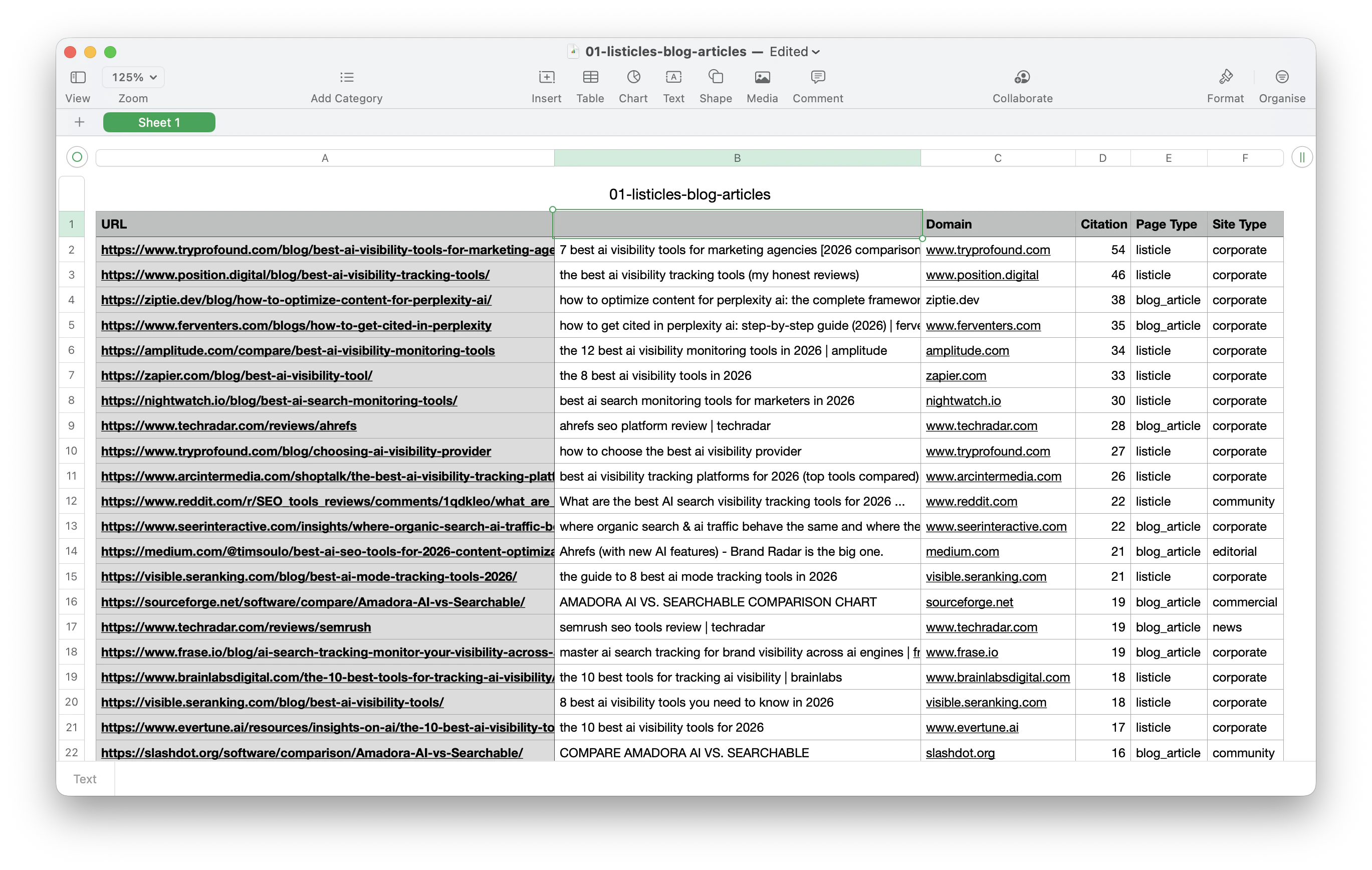
- Listicles & blog articles — pulled straight from Amadora citations: every listicle AI engines cited where your brand is NOT mentioned and the URL is NOT owned. This is the highest-leverage list because the AI is already pulling from these pages.
- Review platforms — vertical-specific review sites the brand should be on.
- Directories — local, industry, and professional directories worth submitting to.
- Editorial publications — niche media, trade blogs, and industry journals to pitch.
- Communities — Reddit, Quora, Stack Exchange, and niche forums to participate in.
- Social media — split into 6a (content posting) and 6b (guest pitching: podcasts, YouTube).
- Databases & knowledge sources — split into 7a (self-serve), 7b (claim-based), 7c (earned/notability-gated), 7d (code-based).
When to use it
- Quarterly link-building / outreach planning — get a fresh list of where to pitch, submit, and post.
- AI-citation chasing — listicles your competitors are in but you’re not. This is workflow #1 and the most direct lever.
- PR media list building — editorial publications to pitch for the brand.
- Founder content strategy — which podcasts, YouTube channels, and communities the founder should show up on.
- Database / directory hygiene — making sure the brand is in every relevant Crunchbase-style source AI engines pull from.
What you get
A timestamped folder with one CSV per category you selected. A real example from this folder:Example invocations
/mentions— Project picker, then category picker, then CSVs."Build me a list of directories Amadora should be in"— Natural language works."Which podcasts should we pitch for [brand]?"— Triggers the social/podcast workflow.
Tips for getting the most out of the plugin
A few patterns that work well in practice:- Run
/reportweekly,/trendmonthly,/contentand/mentionsquarterly. That cadence keeps the team’s attention proportional to how often the underlying data actually changes. - Use natural language when you don’t remember the command. All four skills also trigger on plain-English phrasings — “how is X doing in AI this week”, “build me a content plan”, “what directories should we be in”.
- Let Claude pick the project automatically when you can. If you name the brand in the original message (e.g.
/trend Amadora 12w), Claude skips the project picker entirely. - Trust the silent mode. The skills are intentionally quiet — they fetch data, do their analysis, and only surface the finished output. If you don’t see narration, that’s by design.
- Open the example outputs in this folder. The
Amadora_Visibility_Trend_8wk.xlsx,content-plan-2026-05-10/, andmentions-amadora-2026-05-10/directories show exactly what each skill produces — they’re the fastest way to internalize the output shape before you run them yourself. - Combine skills. A common workflow: run
/reportMonday to spot a topic that dropped, run/contentlater that day to plan the briefs to fix it, run/mentionsthe same week to chase the listicles you’re missing from, then run/trend8 weeks later to prove the work landed.
Troubleshooting
- “Claude can’t find any projects.” The MCP isn’t authorized, or it’s authorized against a different Amadora account. Re-authorize from plugin settings.
- The Excel didn’t save. Trend reports save to the connected workspace folder — make sure you started the Cowork session with a folder selected.
- The widget didn’t render. Refresh the chat. If it still doesn’t show, ask Claude to retry; the widget renderer occasionally needs a second pass.
- The skill picked the wrong project. Be more specific in the trigger message (
/report Amadorainstead of just/report), or use the picker to override. - Data looks stale. Amadora refreshes on its own cadence; the MCP returns whatever is current in your account. If a recent prompt isn’t showing, check the Amadora UI first.