> ## Documentation Index
> Fetch the complete documentation index at: https://docs.amadora.ai/llms.txt
> Use this file to discover all available pages before exploring further.
# Getting started with Google AI Search
Google AI Search shows you how your brand appears on Google now that Google answers with AI — across both the classic blue links and the AI Overview that sits on top of them.
## Quick start
Three steps to go from zero to live tracking:
1. **Add your keywords** — the search intents you want to monitor (you get 5 for free).
2. **Wait for the first run** — Amadora checks each keyword on Google on a recurring schedule and builds your baseline.
3. **Open the Overview** — read your visibility funnel and the gap insights, then drill into the Keywords view to act.
## Step 1 — Add your keywords
**What it is.** In Google AI Search you track *keywords* — short Google-style search intents like `mentoring software for mid-size companies`, not the long conversational prompts you'd type into a chatbot. Each keyword is re-checked on a schedule so your metrics stay current.
**Why it matters.** Your keyword set defines everything the feature measures. Choosing the right intents — the queries your buyers actually type — is what makes the visibility, mention, and citation numbers meaningful. Every account includes **5 keywords by default**, so start with your highest-value commercial intents.
There are three ways to add keywords. Use whichever fits how you already work — you can mix and match.
### Option A — Add keywords manually
**Best for:** a handful of known, high-priority queries you already have in mind.
**Benefit:** full control and instant setup — type exactly the intents you care about, no list required.
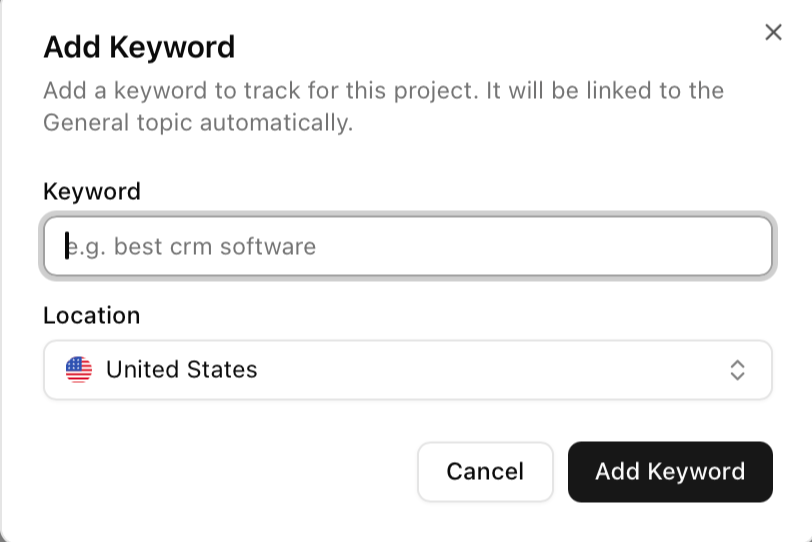 1. Open your project and go to **Google AI Search**.
2. Click **Add keywords** and choose the manual entry option.
3. Type one keyword (search phrase) per line.
4. Save. The keywords enter the queue and are checked on the next run.
### Option B — Pick keywords from the topical map
**Best for:** covering a whole topic thoroughly without brainstorming every phrase yourself.
**Benefit:** the topical map groups relevant search intents by theme, so you can see the full landscape around your product and select the ones worth tracking — fast coverage, fewer blind spots.
1. In **Add keywords**, open the **Topical map**.
2. Browse the suggested keywords, organized by topic.
3. Tick the intents you want to track (prioritize commercial and comparison queries).
4. Add the selected keywords to your project.
### Option C — Import keywords from a CSV file
**Best for:** bulk-loading an existing keyword list — for example, an export from your SEO tool or a list you maintain in a spreadsheet.
**Benefit:** add many keywords at once instead of typing them in, so migrating an existing research set takes seconds.
1. Open your project and go to **Google AI Search**.
2. Click **Add keywords** and choose the manual entry option.
3. Type one keyword (search phrase) per line.
4. Save. The keywords enter the queue and are checked on the next run.
### Option B — Pick keywords from the topical map
**Best for:** covering a whole topic thoroughly without brainstorming every phrase yourself.
**Benefit:** the topical map groups relevant search intents by theme, so you can see the full landscape around your product and select the ones worth tracking — fast coverage, fewer blind spots.
1. In **Add keywords**, open the **Topical map**.
2. Browse the suggested keywords, organized by topic.
3. Tick the intents you want to track (prioritize commercial and comparison queries).
4. Add the selected keywords to your project.
### Option C — Import keywords from a CSV file
**Best for:** bulk-loading an existing keyword list — for example, an export from your SEO tool or a list you maintain in a spreadsheet.
**Benefit:** add many keywords at once instead of typing them in, so migrating an existing research set takes seconds.
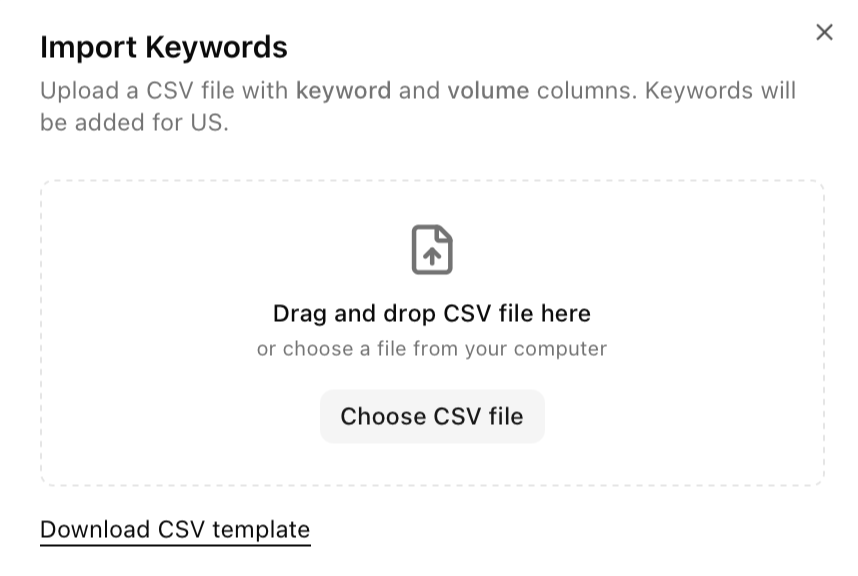 1. Prepare a CSV with one keyword per row (a single column of search phrases).
2. In **Add keywords**, choose **Import from CSV** and upload the file.
3. Review the parsed list and confirm.
4. The keywords are added and queued for the next run.
### Going beyond 5 keywords
To track more, activate the **keyword add-on** — pricing scales with the number of keywords and **starts at \$9/month for 15 keywords**. The add-on takes effect immediately, so you can expand into longer-tail and competitor-comparison queries whenever you're ready.
## Step 2 — Let the first run complete
**What happens.** Once keywords are added, Amadora runs each one on Google and captures a snapshot of the whole results page — your organic rank, whether an AI Overview appeared, and whether your brand was mentioned or cited in it.
Keywords are re-checked on a recurring schedule (shown in the header, e.g. *"All keywords run 3 times a week"*), so the numbers reflect a repeated sample rather than a single moment.
**Why it matters.** You don't need to do anything here — but knowing the data is sampled repeatedly explains why metrics firm up after the first couple of runs and why they shift gradually rather than spiking.
## Step 3 — Read your results
Google AI Search has two views, switched from the top-right toggle. Here's what each is for.
### The Overview — your visibility at a glance
**What it is.** The aggregate health of your whole keyword set: four headline metrics, a competitor comparison, SERP composition, and an automated insights panel.
**Why it matters.** It answers the big questions in seconds — *do we show up, does Google show an AI answer, and does that answer mention or cite us?* The four metrics form a funnel:
1. Prepare a CSV with one keyword per row (a single column of search phrases).
2. In **Add keywords**, choose **Import from CSV** and upload the file.
3. Review the parsed list and confirm.
4. The keywords are added and queued for the next run.
### Going beyond 5 keywords
To track more, activate the **keyword add-on** — pricing scales with the number of keywords and **starts at \$9/month for 15 keywords**. The add-on takes effect immediately, so you can expand into longer-tail and competitor-comparison queries whenever you're ready.
## Step 2 — Let the first run complete
**What happens.** Once keywords are added, Amadora runs each one on Google and captures a snapshot of the whole results page — your organic rank, whether an AI Overview appeared, and whether your brand was mentioned or cited in it.
Keywords are re-checked on a recurring schedule (shown in the header, e.g. *"All keywords run 3 times a week"*), so the numbers reflect a repeated sample rather than a single moment.
**Why it matters.** You don't need to do anything here — but knowing the data is sampled repeatedly explains why metrics firm up after the first couple of runs and why they shift gradually rather than spiking.
## Step 3 — Read your results
Google AI Search has two views, switched from the top-right toggle. Here's what each is for.
### The Overview — your visibility at a glance
**What it is.** The aggregate health of your whole keyword set: four headline metrics, a competitor comparison, SERP composition, and an automated insights panel.
**Why it matters.** It answers the big questions in seconds — *do we show up, does Google show an AI answer, and does that answer mention or cite us?* The four metrics form a funnel:
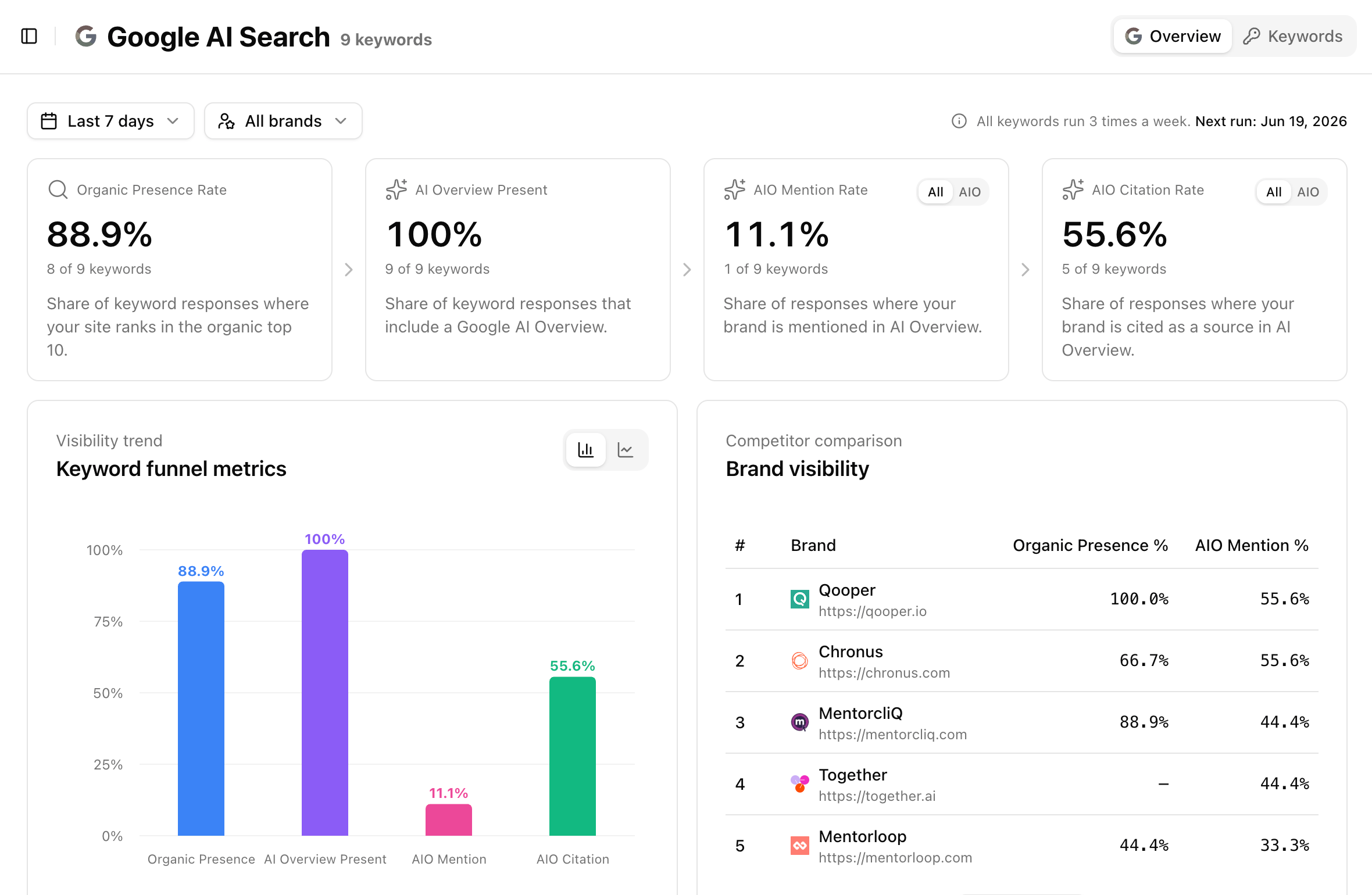 * **Organic Presence Rate** — how often you rank in the organic top 10.
* **AI Overview Present** — how often Google shows an AI Overview at all.
* **AIO Mention Rate** — how often the AI Overview names your brand.
* **AIO Citation Rate** — how often it cites your site as a source.
The step-down from "an AI answer appears" to "we're mentioned in it" is usually your biggest opportunity.
The **Brand visibility** table benchmarks you against competitors, and the **Gap insights & opportunities** panel turns the gaps between these surfaces into a short, prioritized to-do list (for example, *Invisible in AI Overview* or *Rank but not cited*).
* **Organic Presence Rate** — how often you rank in the organic top 10.
* **AI Overview Present** — how often Google shows an AI Overview at all.
* **AIO Mention Rate** — how often the AI Overview names your brand.
* **AIO Citation Rate** — how often it cites your site as a source.
The step-down from "an AI answer appears" to "we're mentioned in it" is usually your biggest opportunity.
The **Brand visibility** table benchmarks you against competitors, and the **Gap insights & opportunities** panel turns the gaps between these surfaces into a short, prioritized to-do list (for example, *Invisible in AI Overview* or *Rank but not cited*).
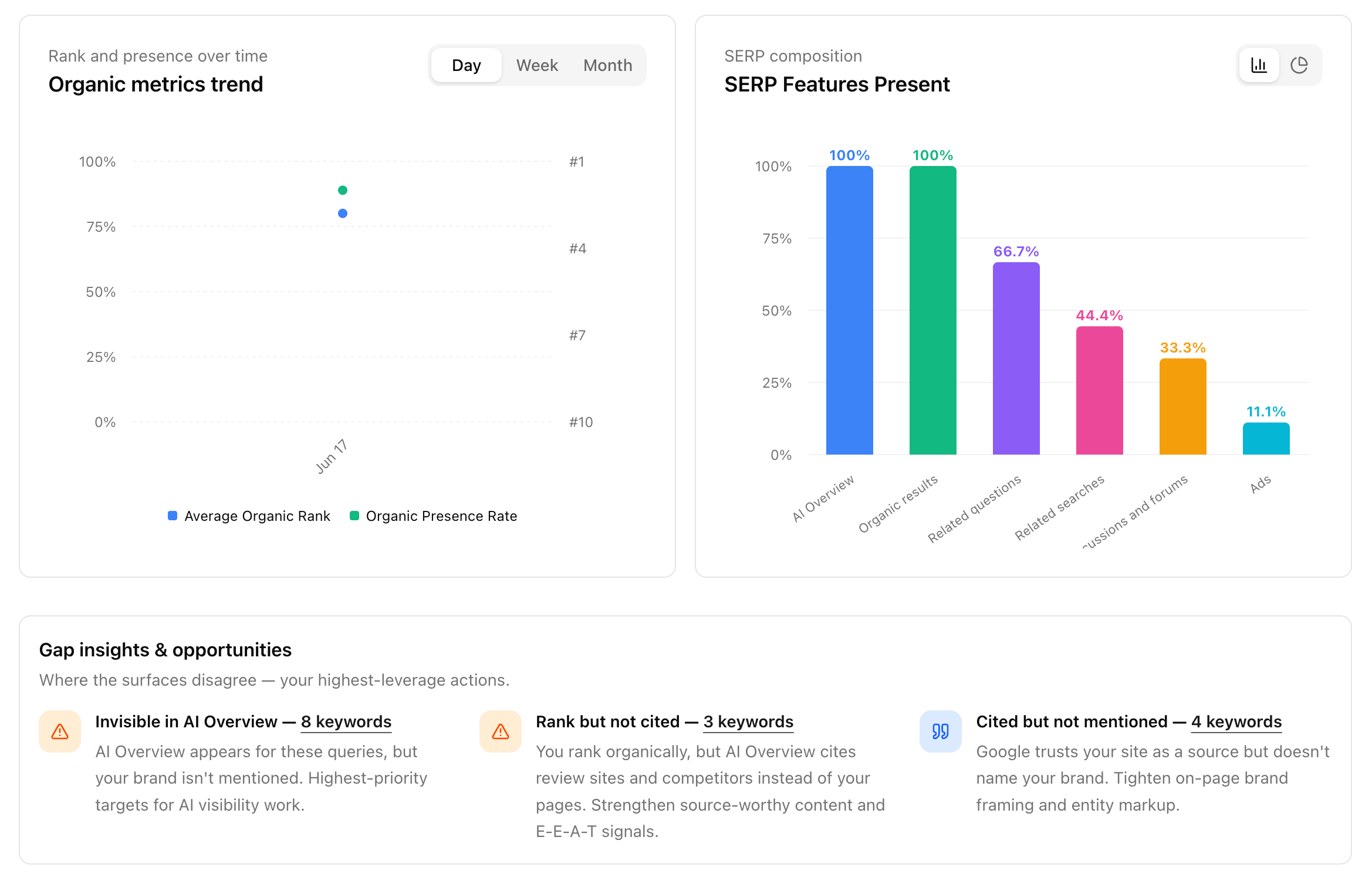 > For the precise definition of each metric, the All / AIO toggle, and every gap-insight type, see the **Google AI Search — feature reference** article.
### The Keywords view — find the queries behind the numbers
**What it is.** A per-keyword table with sortable columns: **Organic Rank**, **AI Overview**, **AIO Mentioned**, and **AIO Cited**.
> For the precise definition of each metric, the All / AIO toggle, and every gap-insight type, see the **Google AI Search — feature reference** article.
### The Keywords view — find the queries behind the numbers
**What it is.** A per-keyword table with sortable columns: **Organic Rank**, **AI Overview**, **AIO Mentioned**, and **AIO Cited**.
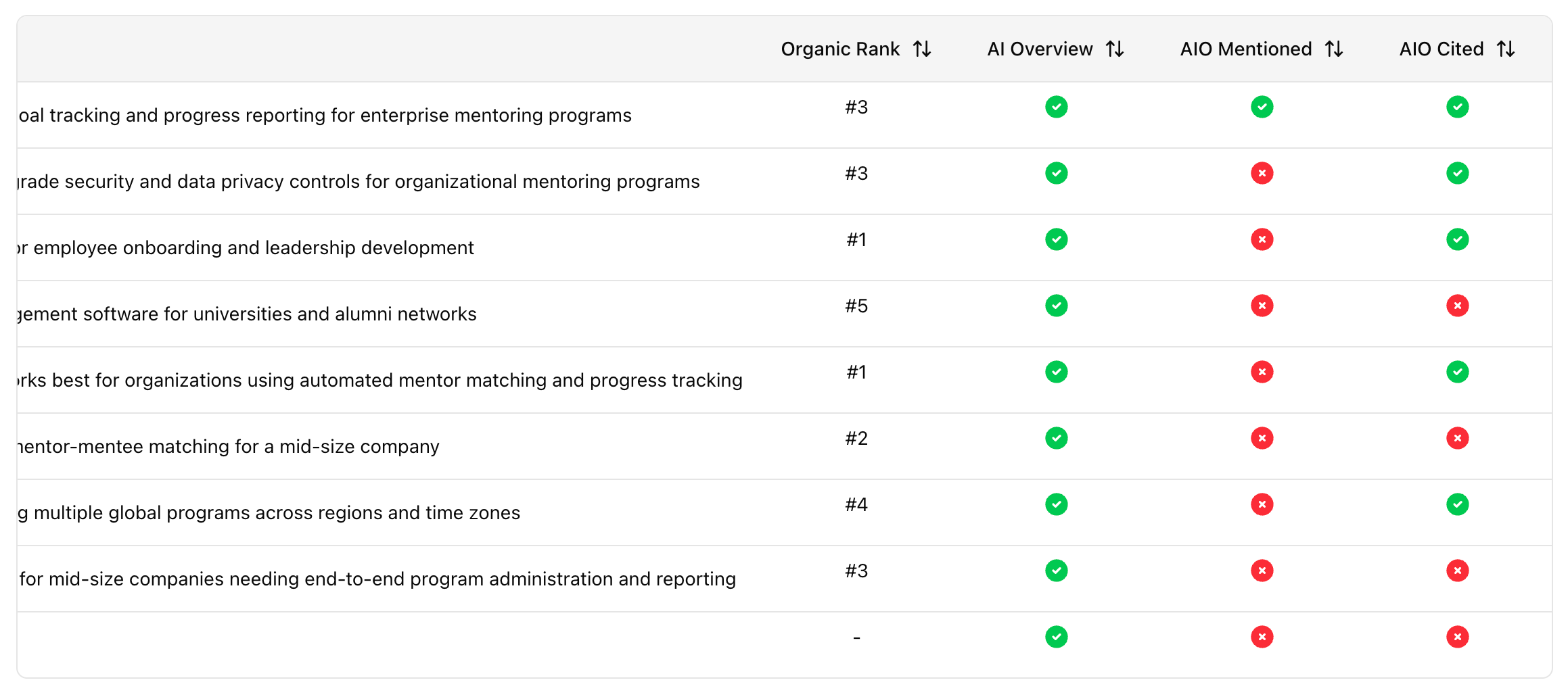 **Why it matters.** The Overview tells you *what* is happening; the Keywords view tells you *which queries* are responsible — so you can build a concrete work list. Sort by a column to triage; for example, surface every query where an AI Overview appears but you're not mentioned, and start there.
## Optional — Connect Google Search Console
**What it is.** A connection to your own Search Console data that brings real **clicks**, **impressions**, and **average position** alongside Amadora's AI-visibility metrics.
**Why it matters.** Google folds AI-feature traffic into its general performance numbers, so GSC alone can't tell you whether an AI Overview is costing you the click.
Pairing it with Amadora connects cause to effect — high-impression, low-CTR queries where you're *not* mentioned in the AI Overview are usually your best opportunities. This step is optional and can be added anytime; see the reference article for details.
**Why it matters.** The Overview tells you *what* is happening; the Keywords view tells you *which queries* are responsible — so you can build a concrete work list. Sort by a column to triage; for example, surface every query where an AI Overview appears but you're not mentioned, and start there.
## Optional — Connect Google Search Console
**What it is.** A connection to your own Search Console data that brings real **clicks**, **impressions**, and **average position** alongside Amadora's AI-visibility metrics.
**Why it matters.** Google folds AI-feature traffic into its general performance numbers, so GSC alone can't tell you whether an AI Overview is costing you the click.
Pairing it with Amadora connects cause to effect — high-impression, low-CTR queries where you're *not* mentioned in the AI Overview are usually your best opportunities. This step is optional and can be added anytime; see the reference article for details.