> ## Documentation Index
> Fetch the complete documentation index at: https://docs.amadora.ai/llms.txt
> Use this file to discover all available pages before exploring further.
# Amadora AI Credits
> How credits work, what they cost, and how to manage your balance.
As of February 13, 2026, Amadora AI has moved to a flexible **Credit System**. This allows you to scale your optimization efforts on demand, without being locked into a higher subscription tier just to run a few extra reports.
This guide explains how credits are allocated, how they are consumed, and how to manage your balance.
### 1. Your Credit Balance
You can view your real-time balance by navigating to the **Credits** tab in your dashboard sidebar. Your total balance is made up of two types of credits:
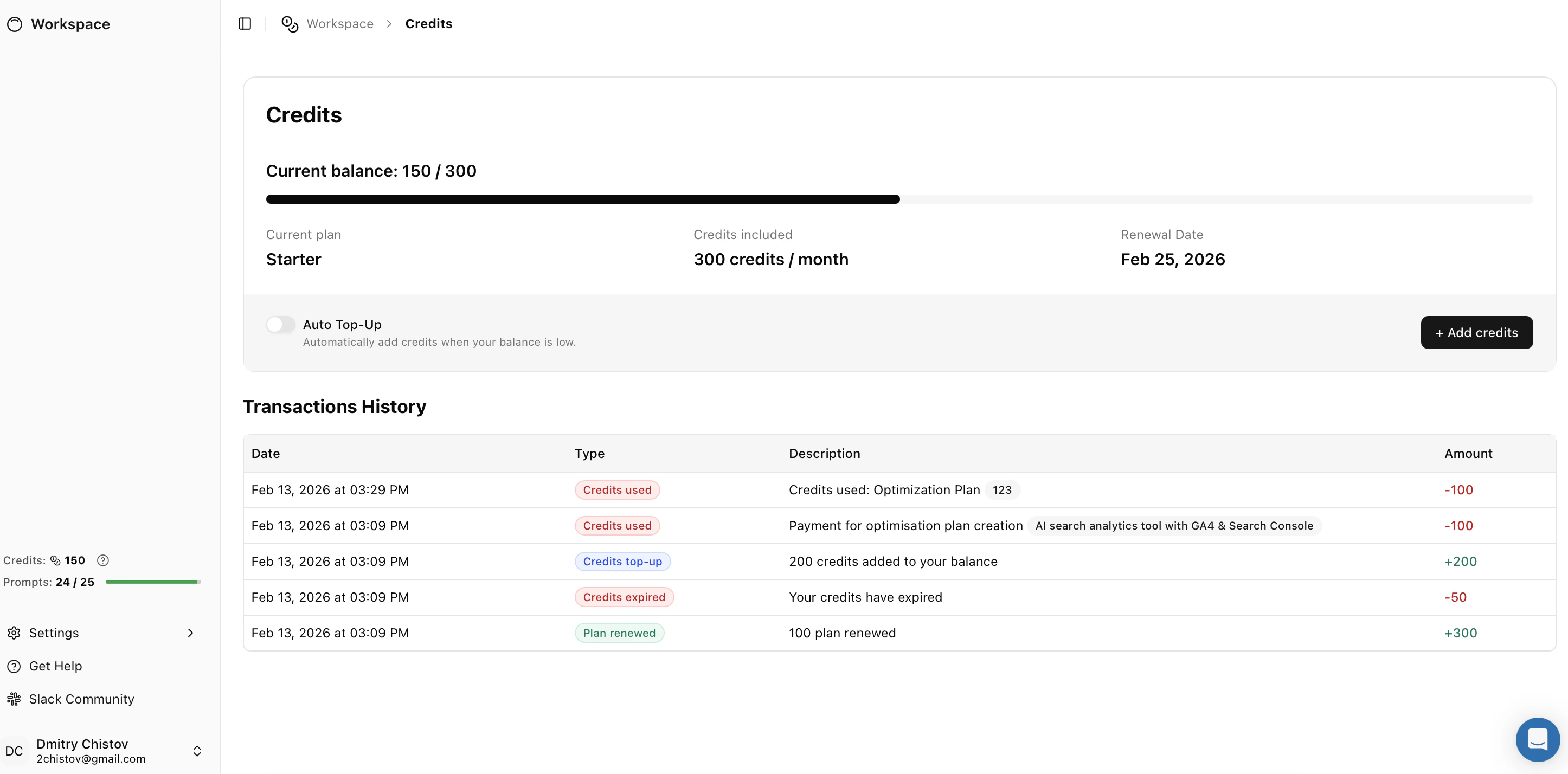 * **Plan Credits:** These are the credits included with your monthly subscription (e.g., *300 credits/month*). These renew automatically on your billing date.
* **Top-Up Credits:** These are additional credits you purchase separately. They are added to your balance immediately and are used when you exceed your monthly allowance.
### 2. Credit Usage & Costs
Credits are the currency used to perform high-value actions within the platform.
* **Optimization Plans:** Creating a comprehensive Optimization Plan consumes **100 Credits** per plan.
* *Includes:* Deep-dive analysis, Ideal Model generation, and the full "Actions" roadmap.
> **Note:** Basic tracking and monitoring of your keywords do not consume credits; credits are only deducted when you generate new strategic assets.
### 3. Adding More Credits
If you run out of credits mid-month, you can instantly top up your balance without upgrading your entire subscription.
* **Plan Credits:** These are the credits included with your monthly subscription (e.g., *300 credits/month*). These renew automatically on your billing date.
* **Top-Up Credits:** These are additional credits you purchase separately. They are added to your balance immediately and are used when you exceed your monthly allowance.
### 2. Credit Usage & Costs
Credits are the currency used to perform high-value actions within the platform.
* **Optimization Plans:** Creating a comprehensive Optimization Plan consumes **100 Credits** per plan.
* *Includes:* Deep-dive analysis, Ideal Model generation, and the full "Actions" roadmap.
> **Note:** Basic tracking and monitoring of your keywords do not consume credits; credits are only deducted when you generate new strategic assets.
### 3. Adding More Credits
If you run out of credits mid-month, you can instantly top up your balance without upgrading your entire subscription.
 1. Go to the **Credits** page.
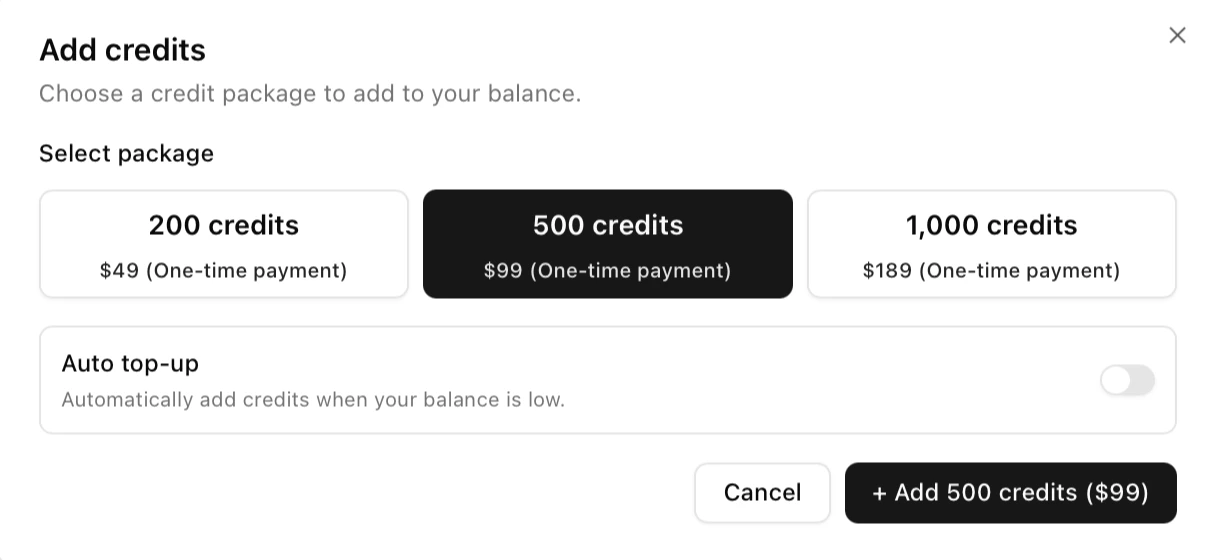
2. Click the **+ Add credits** button in the top right.
3. Select a one-time package:
* **200 Credits:** \$49
* **500 Credits:** \$99 (*Best Value for small teams*)
* **1,000 Credits:** \$189 (*Best Value for agencies*)
The payment is processed immediately, and credits are available for use instantly.
### 4. Auto Top-Up
To ensure your workflows are never interrupted—especially if you have scheduled optimizations running—you can enable **Auto Top-Up**.
* **How it works:** When your balance falls below a safe threshold, the system will automatically purchase your preferred credit package.
* **Enable/Disable:** You can toggle this setting **On** or **Off** directly from the main Credits dashboard or within the "Add credits" modal.
### 5. Transaction History
For full transparency, the **Transaction History** table at the bottom of the Credits page provides a detailed audit log of every credit movement.
* **Usage:** Shows exactly which project or plan consumed credits (e.g., *"-100 Credits: Optimization Plan created"*).
* **Renewals:** Shows when your monthly plan credits were added (e.g., *"+300 Credits: Plan renewed"*).
* **Purchases:** Shows manual or automatic top-ups.
1. Go to the **Credits** page.
2. Click the **+ Add credits** button in the top right.
3. Select a one-time package:
* **200 Credits:** \$49
* **500 Credits:** \$99 (*Best Value for small teams*)
* **1,000 Credits:** \$189 (*Best Value for agencies*)
The payment is processed immediately, and credits are available for use instantly.
### 4. Auto Top-Up
To ensure your workflows are never interrupted—especially if you have scheduled optimizations running—you can enable **Auto Top-Up**.
* **How it works:** When your balance falls below a safe threshold, the system will automatically purchase your preferred credit package.
* **Enable/Disable:** You can toggle this setting **On** or **Off** directly from the main Credits dashboard or within the "Add credits" modal.
### 5. Transaction History
For full transparency, the **Transaction History** table at the bottom of the Credits page provides a detailed audit log of every credit movement.
* **Usage:** Shows exactly which project or plan consumed credits (e.g., *"-100 Credits: Optimization Plan created"*).
* **Renewals:** Shows when your monthly plan credits were added (e.g., *"+300 Credits: Plan renewed"*).
* **Purchases:** Shows manual or automatic top-ups.