> ## Documentation Index
> Fetch the complete documentation index at: https://docs.amadora.ai/llms.txt
> Use this file to discover all available pages before exploring further.
# Amadora AI Claude Cowork Plugin
The Amadora plugin turns Claude Cowork into an AI-search analyst sitting next to you. It connects Claude to your Amadora account, then layers four ready-made skills on top — so you can ship weekly visibility reports, multi-week trend decks for clients, AI-citation content briefs, and outreach lists for link-building, all by typing a single command.
This guide walks you through installing the plugin, gives a short overview of the underlying Amadora MCP, and explains what each skill does, when to reach for it, and what you actually get out.
## What's in the plugin
The plugin bundles two things:
* **The Amadora MCP** — a read-only connector that lets Claude query your Amadora account (projects, prompts, citations, competitors, audits, optimization plans).
* **Four skills** — opinionated workflows that combine MCP data with templates, widgets, and file outputs:
| Skill | Command | Output | Use it when |
| ------------ | ----------- | ---------------------- | ---------------------------------------------------------------------------------------------------- |
| **Report** | `/report` | Inline widget in chat | You want a weekly snapshot of how a brand is doing in AI answers. |
| **Trend** | `/trend` | `.xlsx` in workspace | You need a client-ready deck/report showing visibility movement over weeks. |
| **Content** | `/content` | Folder of `.md` briefs | You're planning content to get cited by ChatGPT, Claude, Perplexity, Gemini, or Google AI Overviews. |
| **Mentions** | `/mentions` | One CSV per category | You need an outreach or link-building list — listicles, directories, podcasts, communities, etc. |
## Installation
The plugin ships as a single `.plugin` file. To install it in Claude Cowork:
1. [Download plugin](https://app.amadora.ai/dashboard/integrations/claude) from Amadora AI
2. Open Claude Cowork.
3. Go to **Customize > Click + > Create Plugin** **> Upload Plugin**
4. Click Upload Plugin > Upload the `amadora-ai.zip` file.
5. When prompted, **authorize the Amadora MCP** by signing in with your Amadora account. This is a one-time OAuth flow — Claude only ever reads your Amadora data, never writes.
6. Confirm the plugin is enabled. You should now see the four commands (`/report`, `/trend`, `/content`, `/mentions`) available in any Cowork session.\\
**Tip:** If you manage multiple Amadora accounts (e.g. an agency with several client workspaces), the plugin will use whichever account you authorized. To switch, disconnect and re-authorize from the plugin settings.
## The Amadora MCP & what it gives Claude
The MCP (Model Context Protocol connector) is the data layer underneath every skill. It's a read-only window into your Amadora workspace that exposes the same things you see in the Amadora UI:
* **Projects** — one per monitored brand or site.
* **Prompts** — the tracked questions you want to show up in AI answers for.
* **Citations** — every URL AI engines linked to in their answers, with site type, page type, domain, and ownership flags.
* **Competitors** — brands appearing in the same AI answers, with share-of-voice, visibility, and mention position.
* **Audits and optimization plans** — Amadora's pre-built reports and AI-generated improvement plans.
The four skills do the heavy lifting — picking the right tools, applying the right filters, formatting the output. You usually don't need to think about the MCP directly. But if you ever want to ask Claude a one-off question in plain English (e.g. *"Which prompts did Amadora lose visibility on this week?"*), the MCP makes that possible too.
The MCP defaults to a **rolling 7-day window** whenever a date isn't specified, which matches Amadora's own dashboards.
## Skill: `/report` & Weekly AI Visibility Report
### What it does
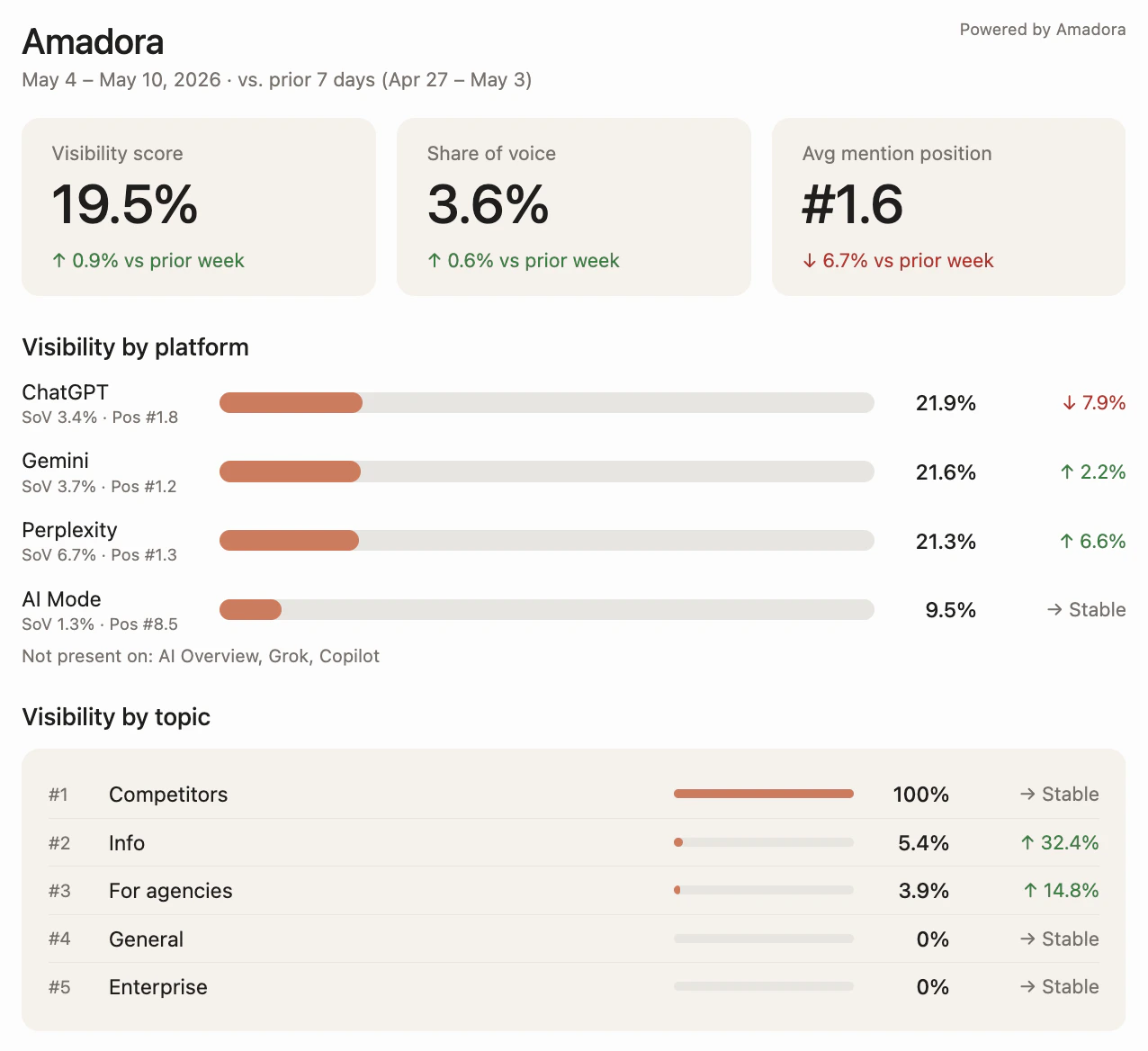
Generates a structured weekly visibility report for one of your brands and renders it **inline in chat** as a single HTML widget. No file is saved — it's designed for at-a-glance status checks, standups, and client updates you can screenshot.
The widget covers four sections:
1. **Three headline KPIs** — visibility score, share of voice, and average mention position, each with the week-over-week delta.
2. **Visibility by AI platform** — ChatGPT, Claude, Perplexity, Gemini, Google AI Overviews, broken out with WoW arrows.
3. **Visibility by topic** — each tracked topic with its current score and week-over-week movement.
4. **AI Citations and Mentions** — count of owned AI citations and brand mentions, each with a 30-day sparkline.
### When to use it
* **Monday-morning status checks** — see whether the brand moved up or down across all platforms over the past week.
* **Client recap emails** — paste a screenshot of the widget straight into a weekly update.
* **Investigating a drop** — if a KPI is down, the per-platform and per-topic breakdowns tell you immediately where it happened.
* **Pre-meeting prep** — before a sync with stakeholders, run `/report [brand]` to walk in with fresh numbers.
### What you get
An inline widget in chat (cream-and-terracotta palette matching the Amadora brand) that's safe to screenshot and share. No `.xlsx` or `.md` file is created — this is the one skill that lives entirely in the conversation.
### Example invocations
* `/report` — Claude shows a project picker, you select one.
* `/report Amadora` — Skips the picker if the brand name uniquely matches a project.
* `"How is Ordemio doing in AI this week?"` — Natural language also triggers it.
## Skill: `/trend` — Multi-Week Visibility Trend Excel
### What it does
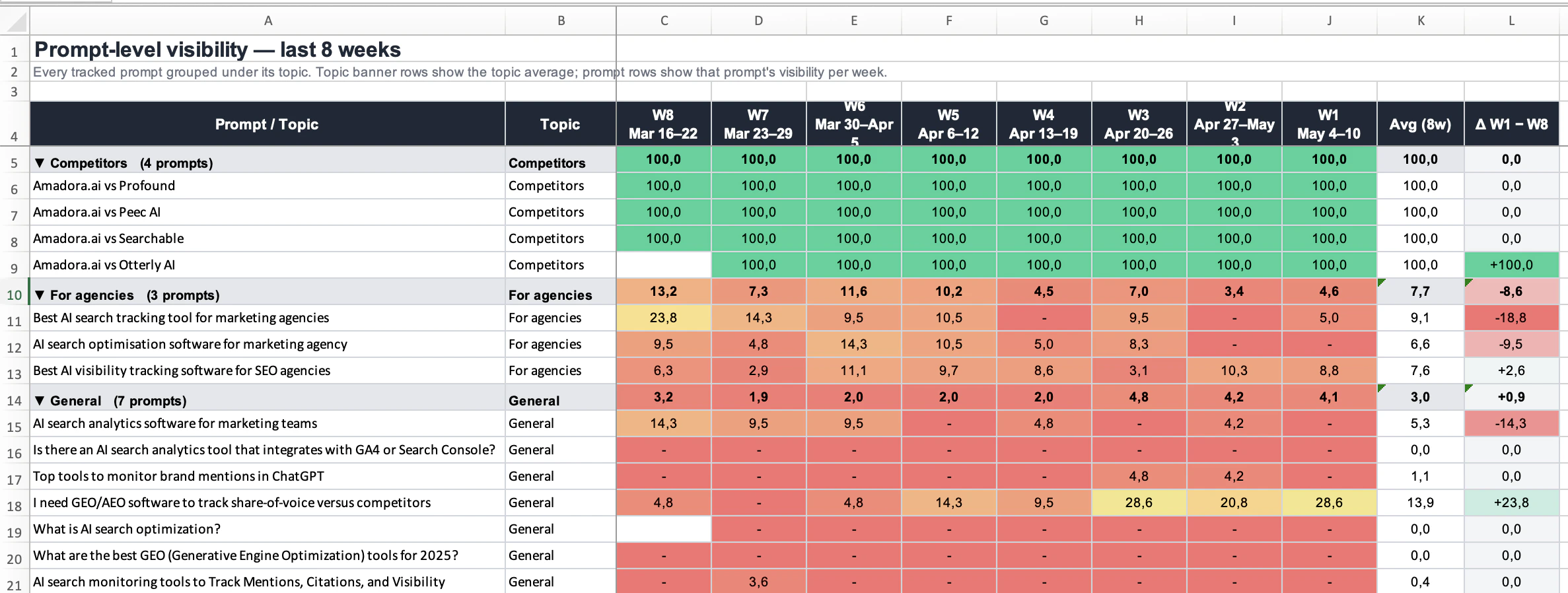
Builds a multi-week visibility trend report as a polished Excel workbook saved to your workspace folder. Designed as a **client deliverable that proves the work is moving the needle** — each row is a topic or prompt, each column is one ISO week, cells are colored on a red → yellow → green heatmap, and a delta column makes the headline number jump off the page.
Before the file is written, Claude also renders a **topic-level heatmap preview directly in chat** so you can sanity-check the numbers before opening Excel.
The workbook has three tabs:
* **Summary** — headline KPIs across the chosen period.
* **Topic Trend** — 5-10 topic rows with the heatmap, a delta column, and a multi-series line chart.
* **Prompt Detail** — every tracked prompt grouped under its topic, same week-by-week heatmap.
You can pick the time window: **4, 8, 12, or 24 weeks** (default 8).
### When to use it
* **Quarterly business reviews** — bring a single Excel that tells the whole story.
* **Renewal conversations** — "Here's how visibility moved on the topics you cared about over the last 12 weeks."
* **Internal performance reviews** — head of marketing wants to see whether the AI-search investment is paying off.
* **Investigating a long-term trend** — week-over-week is too noisy; trend reports show whether something is actually shifting.
### What you get
A single `.xlsx` saved to the connected workspace folder, named `{Project}_Visibility_Trend_{N}wk.xlsx` — for example:
* `Amadora_Visibility_Trend_8wk.xlsx`
* `NetReputation_Visibility_Trend_8wk.xlsx`
* `Ordemio_Visibility_Trend_8wk.xlsx`
(Real examples produced by this skill live in this very folder — open any of them to see exactly what the output looks like.)
### Example invocations
* `/trend` — Project picker + period picker.
* `/trend 12` — 12 weeks, with project picker.
* `/trend Amadora 24w` — 24-week trend for Amadora, no picker needed.
## Skill: `/content` — AI-Citation Content Planner
### What it does
Generates **content plans and per-prompt briefs** designed to get cited by AI engines (ChatGPT, Claude, Perplexity, Gemini, Google AI Overviews) — not to rank in classic Google SERPs.
The killer signal it uses is the **query fan-out**: the actual search queries the AI ran while composing its answers. Combined with the most-cited URLs and page types per prompt, this lets Claude write briefs that target **passage retrieval** — the way LLMs actually pick what to cite.
The skill runs in three interactive stages:
1. **Project diagnosis → Topic Priority Matrix.** Claude pulls your project, ranks topics by lowest owned citation share (i.e. biggest opportunity), and shows them in an interactive widget. You tick the 1-3 topics you want to go deeper on.
2. **Topic analysis + suggested articles.** For each topic, Claude produces a 3-line overview plus a list of 8-15 suggested articles with checkboxes. You select which ones to brief.
3. **Brief generation.** Claude writes a numbered `.md` brief per selected article into a topic folder, plus an `00-OVERVIEW.md` that summarizes the plan.
### When to use it
* **Quarterly content planning** — figure out which topics deserve new content and what specifically to write.
* **AI search gap analysis** — you suspect competitors are getting cited more; this skill quantifies and prioritizes the gap.
* **Brief generation for freelance writers** — hand a writer a focused `.md` brief with the prompt, search queries, recommended page type, and key citations to reference.
* **Refreshing existing content** — briefs explicitly call out whether to publish new or refresh an existing page.
### What you get
A timestamped folder in your workspace, structured like this (a real example from this folder):
```text theme={null}
content-plan-2026-05-10/
├── 00-OVERVIEW.md
└── topic-1-general/
└── 01-profound-vs-otterly-vs-peec-vs-amadora.md
```
Each topic folder contains numbered `.md` briefs. The overview file gives you the plan-at-a-glance.
### Example invocations
* `/content` — Project picker, then interactive topic and article selection.
* `"Build me a content plan for Amadora targeting AI search"` — Natural language also works.
* `"What should I write to get cited by ChatGPT for [topic]?"` — Same skill.
## Skill: `/mentions` — AI Citation Outreach Lists
### What it does
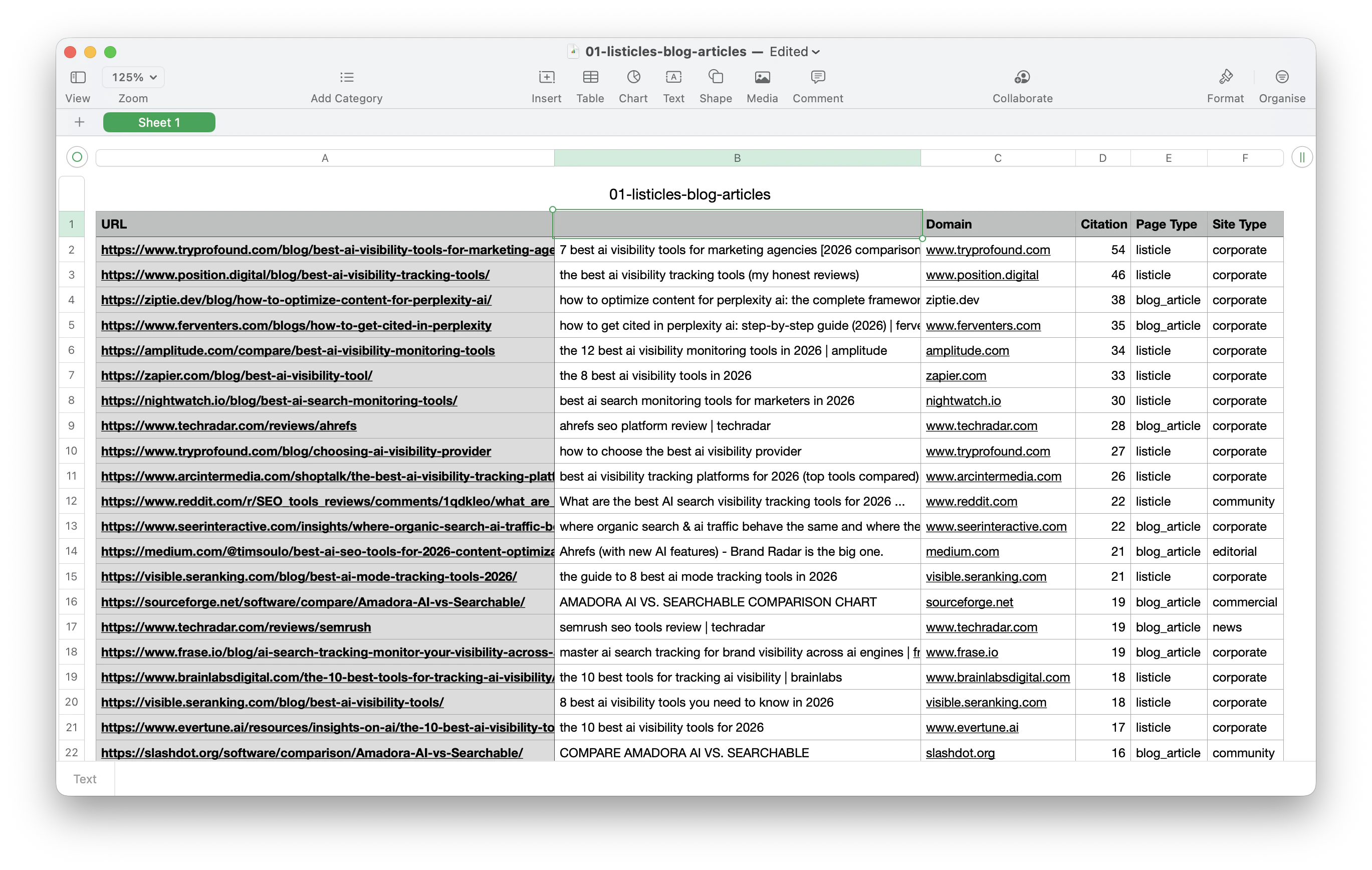
Builds **outreach-ready lists** across seven source categories where AI engines are pulling citations from. The output is a set of CSV files an outreach team or contractor can execute against directly — no further synthesis needed.
The seven categories:
1. **Listicles & blog articles** — pulled straight from Amadora citations: every listicle AI engines cited where your brand is NOT mentioned and the URL is NOT owned. This is the highest-leverage list because the AI is already pulling from these pages.
2. **Review platforms** — vertical-specific review sites the brand should be on.
3. **Directories** — local, industry, and professional directories worth submitting to.
4. **Editorial publications** — niche media, trade blogs, and industry journals to pitch.
5. **Communities** — Reddit, Quora, Stack Exchange, and niche forums to participate in.
6. **Social media** — split into 6a (content posting) and 6b (guest pitching: podcasts, YouTube).
7. **Databases & knowledge sources** — split into 7a (self-serve), 7b (claim-based), 7c (earned/notability-gated), 7d (code-based).
For each category you pick, Claude produces a CSV with 3 decision-relevant columns per row (e.g. citation count, audience fit, members, cost flag) plus a 70-word in-chat findings summary.
### When to use it
* **Quarterly link-building / outreach planning** — get a fresh list of where to pitch, submit, and post.
* **AI-citation chasing** — listicles your competitors are in but you're not. This is workflow #1 and the most direct lever.
* **PR media list building** — editorial publications to pitch for the brand.
* **Founder content strategy** — which podcasts, YouTube channels, and communities the founder should show up on.
* **Database / directory hygiene** — making sure the brand is in every relevant Crunchbase-style source AI engines pull from.
### What you get
A timestamped folder with one CSV per category you selected. A real example from this folder:
```text theme={null}
mentions-amadora-2026-05-10/
├── 01-listicles-blog-articles.csv
├── 02-review-platforms.csv
├── 03-directories.csv
├── 06a-social-content.csv
├── 06b-podcasts-youtube.csv
├── 07a-databases-self-serve.csv
├── 07b-databases-claim-based.csv
├── 07c-databases-earned.csv
└── 07d-databases-code-based.csv
```
Each CSV is shaped for a non-technical outreach person to read top-to-bottom and execute.
### Example invocations
* `/mentions` — Project picker, then category picker, then CSVs.
* `"Build me a list of directories Amadora should be in"` — Natural language works.
* `"Which podcasts should we pitch for [brand]?"` — Triggers the social/podcast workflow.
## Tips for getting the most out of the plugin
A few patterns that work well in practice:
* **Run `/report` weekly, `/trend` monthly, `/content` and `/mentions` quarterly.** That cadence keeps the team's attention proportional to how often the underlying data actually changes.
* **Use natural language when you don't remember the command.** All four skills also trigger on plain-English phrasings — *"how is X doing in AI this week"*, *"build me a content plan"*, *"what directories should we be in"*.
* **Let Claude pick the project automatically when you can.** If you name the brand in the original message (e.g. `/trend Amadora 12w`), Claude skips the project picker entirely.
* **Trust the silent mode.** The skills are intentionally quiet — they fetch data, do their analysis, and only surface the finished output. If you don't see narration, that's by design.
* **Open the example outputs in this folder.** The `Amadora_Visibility_Trend_8wk.xlsx`, `content-plan-2026-05-10/`, and `mentions-amadora-2026-05-10/` directories show exactly what each skill produces — they're the fastest way to internalize the output shape before you run them yourself.
* **Combine skills.** A common workflow: run `/report` Monday to spot a topic that dropped, run `/content` later that day to plan the briefs to fix it, run `/mentions` the same week to chase the listicles you're missing from, then run `/trend` 8 weeks later to prove the work landed.
***
## Troubleshooting
* **"Claude can't find any projects."** The MCP isn't authorized, or it's authorized against a different Amadora account. Re-authorize from plugin settings.
* **The Excel didn't save.** Trend reports save to the connected workspace folder — make sure you started the Cowork session with a folder selected.
* **The widget didn't render.** Refresh the chat. If it still doesn't show, ask Claude to retry; the widget renderer occasionally needs a second pass.
* **The skill picked the wrong project.** Be more specific in the trigger message (`/report Amadora` instead of just `/report`), or use the picker to override.
* **Data looks stale.** Amadora refreshes on its own cadence; the MCP returns whatever is current in your account. If a recent prompt isn't showing, check the Amadora UI first.
For anything else, ask Claude — the assistant has full context on the plugin and can debug most issues in chat.
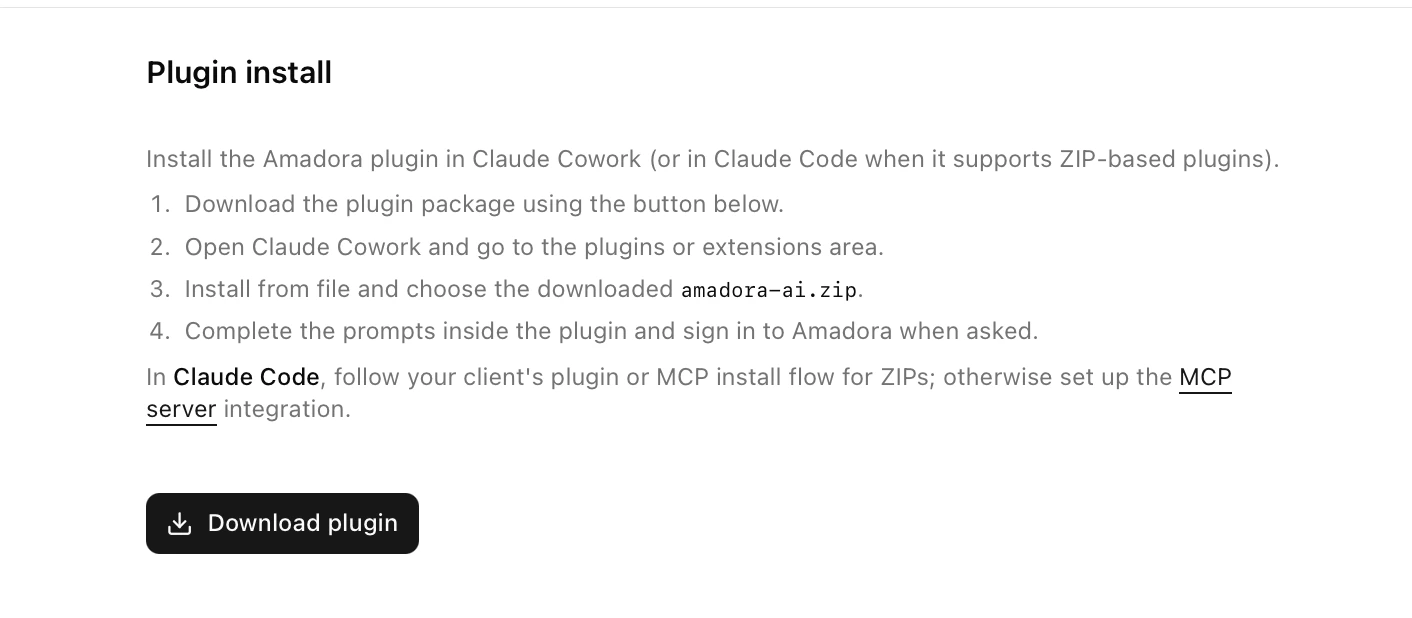 2. Open Claude Cowork.
3. Go to **Customize > Click + > Create Plugin** **> Upload Plugin**
2. Open Claude Cowork.
3. Go to **Customize > Click + > Create Plugin** **> Upload Plugin**
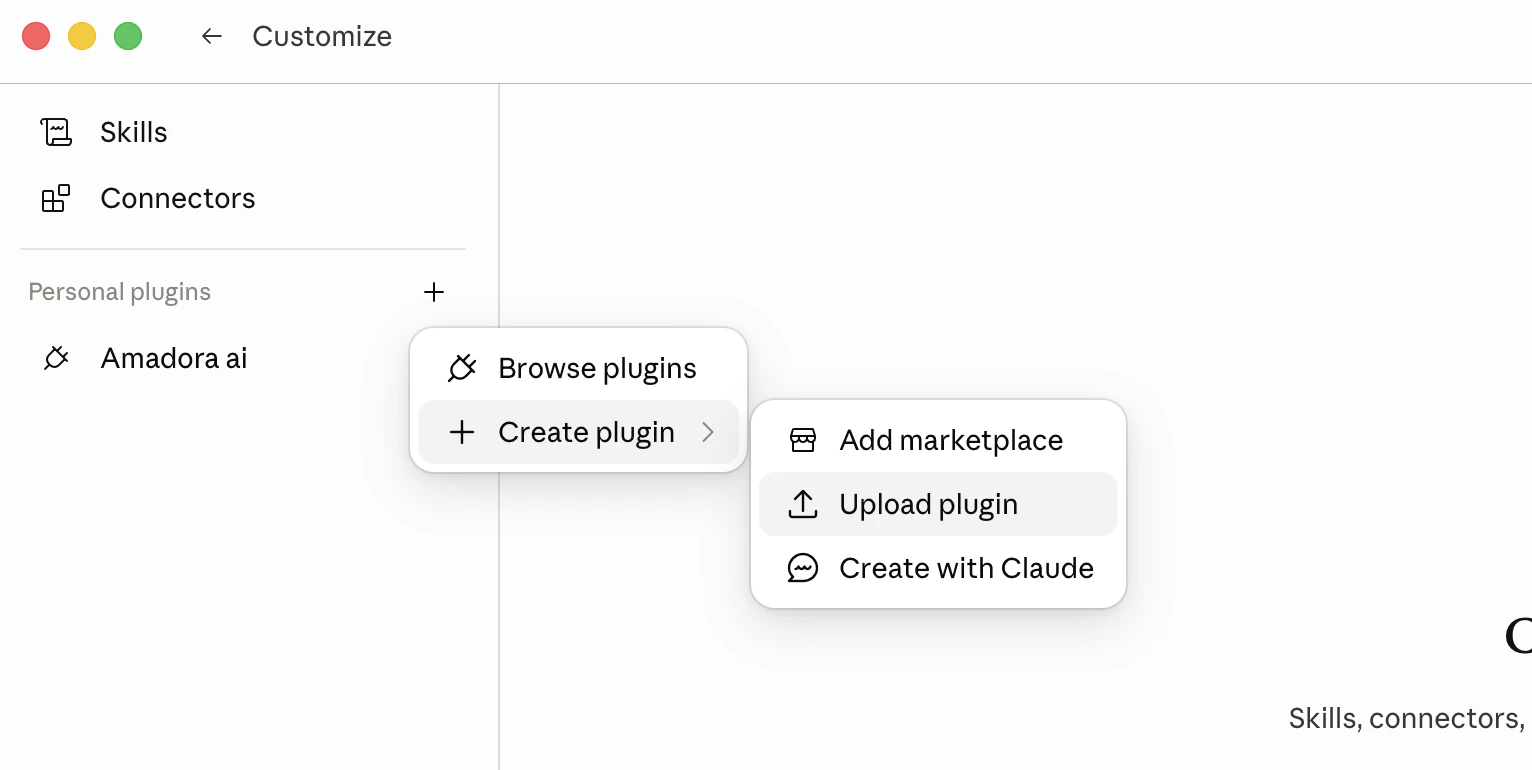 4. Click Upload Plugin > Upload the `amadora-ai.zip` file.
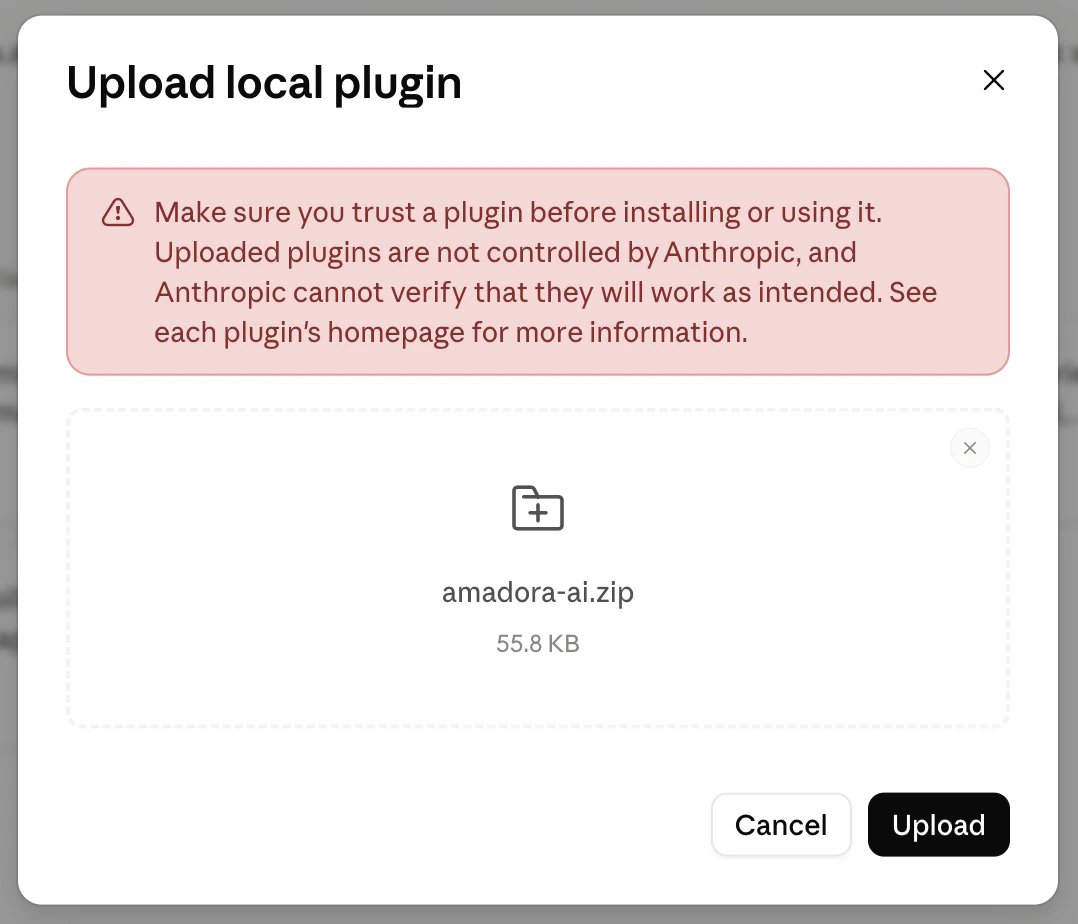 5. When prompted, **authorize the Amadora MCP** by signing in with your Amadora account. This is a one-time OAuth flow — Claude only ever reads your Amadora data, never writes.
6. Confirm the plugin is enabled. You should now see the four commands (`/report`, `/trend`, `/content`, `/mentions`) available in any Cowork session.\\
**Tip:** If you manage multiple Amadora accounts (e.g. an agency with several client workspaces), the plugin will use whichever account you authorized. To switch, disconnect and re-authorize from the plugin settings.
5. When prompted, **authorize the Amadora MCP** by signing in with your Amadora account. This is a one-time OAuth flow — Claude only ever reads your Amadora data, never writes.
6. Confirm the plugin is enabled. You should now see the four commands (`/report`, `/trend`, `/content`, `/mentions`) available in any Cowork session.\\
**Tip:** If you manage multiple Amadora accounts (e.g. an agency with several client workspaces), the plugin will use whichever account you authorized. To switch, disconnect and re-authorize from the plugin settings.
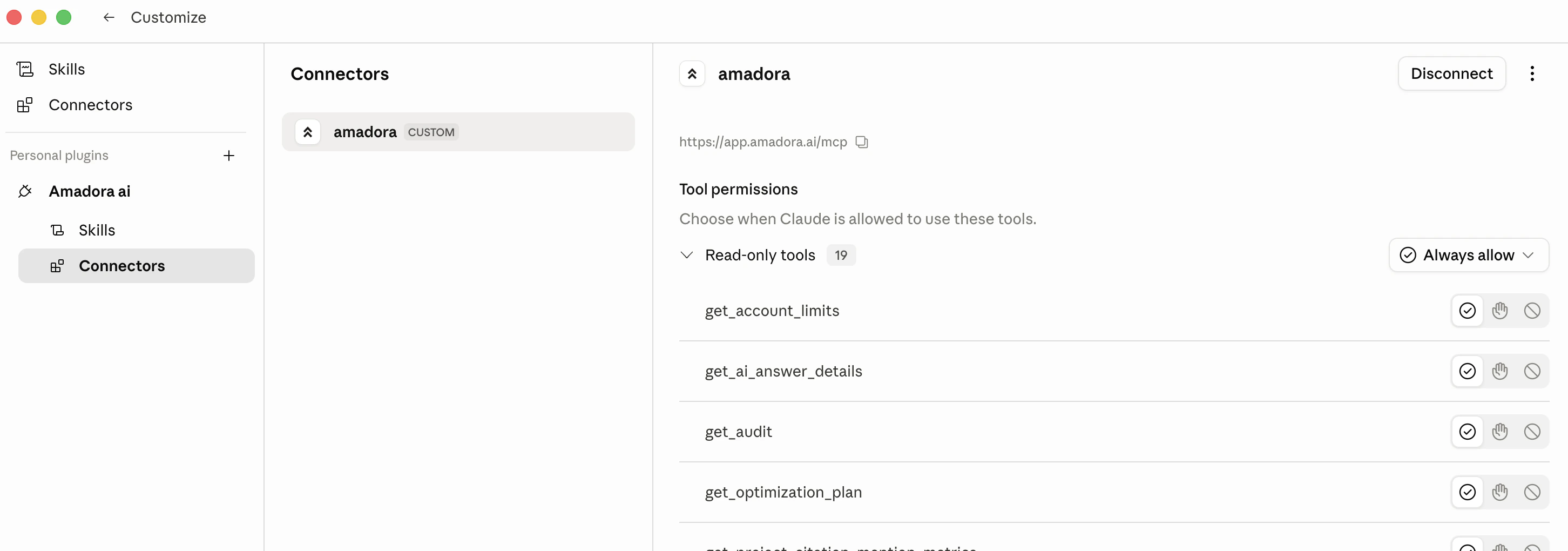 ## The Amadora MCP & what it gives Claude
The MCP (Model Context Protocol connector) is the data layer underneath every skill. It's a read-only window into your Amadora workspace that exposes the same things you see in the Amadora UI:
* **Projects** — one per monitored brand or site.
* **Prompts** — the tracked questions you want to show up in AI answers for.
* **Citations** — every URL AI engines linked to in their answers, with site type, page type, domain, and ownership flags.
* **Competitors** — brands appearing in the same AI answers, with share-of-voice, visibility, and mention position.
* **Audits and optimization plans** — Amadora's pre-built reports and AI-generated improvement plans.
The four skills do the heavy lifting — picking the right tools, applying the right filters, formatting the output. You usually don't need to think about the MCP directly. But if you ever want to ask Claude a one-off question in plain English (e.g. *"Which prompts did Amadora lose visibility on this week?"*), the MCP makes that possible too.
The MCP defaults to a **rolling 7-day window** whenever a date isn't specified, which matches Amadora's own dashboards.
## Skill: `/report` & Weekly AI Visibility Report
### What it does
Generates a structured weekly visibility report for one of your brands and renders it **inline in chat** as a single HTML widget. No file is saved — it's designed for at-a-glance status checks, standups, and client updates you can screenshot.
## The Amadora MCP & what it gives Claude
The MCP (Model Context Protocol connector) is the data layer underneath every skill. It's a read-only window into your Amadora workspace that exposes the same things you see in the Amadora UI:
* **Projects** — one per monitored brand or site.
* **Prompts** — the tracked questions you want to show up in AI answers for.
* **Citations** — every URL AI engines linked to in their answers, with site type, page type, domain, and ownership flags.
* **Competitors** — brands appearing in the same AI answers, with share-of-voice, visibility, and mention position.
* **Audits and optimization plans** — Amadora's pre-built reports and AI-generated improvement plans.
The four skills do the heavy lifting — picking the right tools, applying the right filters, formatting the output. You usually don't need to think about the MCP directly. But if you ever want to ask Claude a one-off question in plain English (e.g. *"Which prompts did Amadora lose visibility on this week?"*), the MCP makes that possible too.
The MCP defaults to a **rolling 7-day window** whenever a date isn't specified, which matches Amadora's own dashboards.
## Skill: `/report` & Weekly AI Visibility Report
### What it does
Generates a structured weekly visibility report for one of your brands and renders it **inline in chat** as a single HTML widget. No file is saved — it's designed for at-a-glance status checks, standups, and client updates you can screenshot.
 The widget covers four sections:
1. **Three headline KPIs** — visibility score, share of voice, and average mention position, each with the week-over-week delta.
2. **Visibility by AI platform** — ChatGPT, Claude, Perplexity, Gemini, Google AI Overviews, broken out with WoW arrows.
3. **Visibility by topic** — each tracked topic with its current score and week-over-week movement.
4. **AI Citations and Mentions** — count of owned AI citations and brand mentions, each with a 30-day sparkline.
### When to use it
* **Monday-morning status checks** — see whether the brand moved up or down across all platforms over the past week.
* **Client recap emails** — paste a screenshot of the widget straight into a weekly update.
* **Investigating a drop** — if a KPI is down, the per-platform and per-topic breakdowns tell you immediately where it happened.
* **Pre-meeting prep** — before a sync with stakeholders, run `/report [brand]` to walk in with fresh numbers.
### What you get
An inline widget in chat (cream-and-terracotta palette matching the Amadora brand) that's safe to screenshot and share. No `.xlsx` or `.md` file is created — this is the one skill that lives entirely in the conversation.
### Example invocations
* `/report` — Claude shows a project picker, you select one.
* `/report Amadora` — Skips the picker if the brand name uniquely matches a project.
* `"How is Ordemio doing in AI this week?"` — Natural language also triggers it.
## Skill: `/trend` — Multi-Week Visibility Trend Excel
### What it does
Builds a multi-week visibility trend report as a polished Excel workbook saved to your workspace folder. Designed as a **client deliverable that proves the work is moving the needle** — each row is a topic or prompt, each column is one ISO week, cells are colored on a red → yellow → green heatmap, and a delta column makes the headline number jump off the page.
Before the file is written, Claude also renders a **topic-level heatmap preview directly in chat** so you can sanity-check the numbers before opening Excel.
The widget covers four sections:
1. **Three headline KPIs** — visibility score, share of voice, and average mention position, each with the week-over-week delta.
2. **Visibility by AI platform** — ChatGPT, Claude, Perplexity, Gemini, Google AI Overviews, broken out with WoW arrows.
3. **Visibility by topic** — each tracked topic with its current score and week-over-week movement.
4. **AI Citations and Mentions** — count of owned AI citations and brand mentions, each with a 30-day sparkline.
### When to use it
* **Monday-morning status checks** — see whether the brand moved up or down across all platforms over the past week.
* **Client recap emails** — paste a screenshot of the widget straight into a weekly update.
* **Investigating a drop** — if a KPI is down, the per-platform and per-topic breakdowns tell you immediately where it happened.
* **Pre-meeting prep** — before a sync with stakeholders, run `/report [brand]` to walk in with fresh numbers.
### What you get
An inline widget in chat (cream-and-terracotta palette matching the Amadora brand) that's safe to screenshot and share. No `.xlsx` or `.md` file is created — this is the one skill that lives entirely in the conversation.
### Example invocations
* `/report` — Claude shows a project picker, you select one.
* `/report Amadora` — Skips the picker if the brand name uniquely matches a project.
* `"How is Ordemio doing in AI this week?"` — Natural language also triggers it.
## Skill: `/trend` — Multi-Week Visibility Trend Excel
### What it does
Builds a multi-week visibility trend report as a polished Excel workbook saved to your workspace folder. Designed as a **client deliverable that proves the work is moving the needle** — each row is a topic or prompt, each column is one ISO week, cells are colored on a red → yellow → green heatmap, and a delta column makes the headline number jump off the page.
Before the file is written, Claude also renders a **topic-level heatmap preview directly in chat** so you can sanity-check the numbers before opening Excel.
 The workbook has three tabs:
* **Summary** — headline KPIs across the chosen period.
* **Topic Trend** — 5-10 topic rows with the heatmap, a delta column, and a multi-series line chart.
* **Prompt Detail** — every tracked prompt grouped under its topic, same week-by-week heatmap.
You can pick the time window: **4, 8, 12, or 24 weeks** (default 8).
### When to use it
* **Quarterly business reviews** — bring a single Excel that tells the whole story.
* **Renewal conversations** — "Here's how visibility moved on the topics you cared about over the last 12 weeks."
* **Internal performance reviews** — head of marketing wants to see whether the AI-search investment is paying off.
* **Investigating a long-term trend** — week-over-week is too noisy; trend reports show whether something is actually shifting.
### What you get
A single `.xlsx` saved to the connected workspace folder, named `{Project}_Visibility_Trend_{N}wk.xlsx` — for example:
* `Amadora_Visibility_Trend_8wk.xlsx`
* `NetReputation_Visibility_Trend_8wk.xlsx`
* `Ordemio_Visibility_Trend_8wk.xlsx`
(Real examples produced by this skill live in this very folder — open any of them to see exactly what the output looks like.)
### Example invocations
* `/trend` — Project picker + period picker.
* `/trend 12` — 12 weeks, with project picker.
* `/trend Amadora 24w` — 24-week trend for Amadora, no picker needed.
## Skill: `/content` — AI-Citation Content Planner
### What it does
Generates **content plans and per-prompt briefs** designed to get cited by AI engines (ChatGPT, Claude, Perplexity, Gemini, Google AI Overviews) — not to rank in classic Google SERPs.
The killer signal it uses is the **query fan-out**: the actual search queries the AI ran while composing its answers. Combined with the most-cited URLs and page types per prompt, this lets Claude write briefs that target **passage retrieval** — the way LLMs actually pick what to cite.
The workbook has three tabs:
* **Summary** — headline KPIs across the chosen period.
* **Topic Trend** — 5-10 topic rows with the heatmap, a delta column, and a multi-series line chart.
* **Prompt Detail** — every tracked prompt grouped under its topic, same week-by-week heatmap.
You can pick the time window: **4, 8, 12, or 24 weeks** (default 8).
### When to use it
* **Quarterly business reviews** — bring a single Excel that tells the whole story.
* **Renewal conversations** — "Here's how visibility moved on the topics you cared about over the last 12 weeks."
* **Internal performance reviews** — head of marketing wants to see whether the AI-search investment is paying off.
* **Investigating a long-term trend** — week-over-week is too noisy; trend reports show whether something is actually shifting.
### What you get
A single `.xlsx` saved to the connected workspace folder, named `{Project}_Visibility_Trend_{N}wk.xlsx` — for example:
* `Amadora_Visibility_Trend_8wk.xlsx`
* `NetReputation_Visibility_Trend_8wk.xlsx`
* `Ordemio_Visibility_Trend_8wk.xlsx`
(Real examples produced by this skill live in this very folder — open any of them to see exactly what the output looks like.)
### Example invocations
* `/trend` — Project picker + period picker.
* `/trend 12` — 12 weeks, with project picker.
* `/trend Amadora 24w` — 24-week trend for Amadora, no picker needed.
## Skill: `/content` — AI-Citation Content Planner
### What it does
Generates **content plans and per-prompt briefs** designed to get cited by AI engines (ChatGPT, Claude, Perplexity, Gemini, Google AI Overviews) — not to rank in classic Google SERPs.
The killer signal it uses is the **query fan-out**: the actual search queries the AI ran while composing its answers. Combined with the most-cited URLs and page types per prompt, this lets Claude write briefs that target **passage retrieval** — the way LLMs actually pick what to cite.
.png?fit=max&auto=format&n=s7j3SeJgl7b2xP1q&q=85&s=bcc894c7cbffe408f06ae368d8dbc680) The skill runs in three interactive stages:
1. **Project diagnosis → Topic Priority Matrix.** Claude pulls your project, ranks topics by lowest owned citation share (i.e. biggest opportunity), and shows them in an interactive widget. You tick the 1-3 topics you want to go deeper on.
2. **Topic analysis + suggested articles.** For each topic, Claude produces a 3-line overview plus a list of 8-15 suggested articles with checkboxes. You select which ones to brief.
3. **Brief generation.** Claude writes a numbered `.md` brief per selected article into a topic folder, plus an `00-OVERVIEW.md` that summarizes the plan.
### When to use it
* **Quarterly content planning** — figure out which topics deserve new content and what specifically to write.
* **AI search gap analysis** — you suspect competitors are getting cited more; this skill quantifies and prioritizes the gap.
* **Brief generation for freelance writers** — hand a writer a focused `.md` brief with the prompt, search queries, recommended page type, and key citations to reference.
* **Refreshing existing content** — briefs explicitly call out whether to publish new or refresh an existing page.
### What you get
A timestamped folder in your workspace, structured like this (a real example from this folder):
```text theme={null}
content-plan-2026-05-10/
├── 00-OVERVIEW.md
└── topic-1-general/
└── 01-profound-vs-otterly-vs-peec-vs-amadora.md
```
Each topic folder contains numbered `.md` briefs. The overview file gives you the plan-at-a-glance.
### Example invocations
* `/content` — Project picker, then interactive topic and article selection.
* `"Build me a content plan for Amadora targeting AI search"` — Natural language also works.
* `"What should I write to get cited by ChatGPT for [topic]?"` — Same skill.
## Skill: `/mentions` — AI Citation Outreach Lists
### What it does
Builds **outreach-ready lists** across seven source categories where AI engines are pulling citations from. The output is a set of CSV files an outreach team or contractor can execute against directly — no further synthesis needed.
The skill runs in three interactive stages:
1. **Project diagnosis → Topic Priority Matrix.** Claude pulls your project, ranks topics by lowest owned citation share (i.e. biggest opportunity), and shows them in an interactive widget. You tick the 1-3 topics you want to go deeper on.
2. **Topic analysis + suggested articles.** For each topic, Claude produces a 3-line overview plus a list of 8-15 suggested articles with checkboxes. You select which ones to brief.
3. **Brief generation.** Claude writes a numbered `.md` brief per selected article into a topic folder, plus an `00-OVERVIEW.md` that summarizes the plan.
### When to use it
* **Quarterly content planning** — figure out which topics deserve new content and what specifically to write.
* **AI search gap analysis** — you suspect competitors are getting cited more; this skill quantifies and prioritizes the gap.
* **Brief generation for freelance writers** — hand a writer a focused `.md` brief with the prompt, search queries, recommended page type, and key citations to reference.
* **Refreshing existing content** — briefs explicitly call out whether to publish new or refresh an existing page.
### What you get
A timestamped folder in your workspace, structured like this (a real example from this folder):
```text theme={null}
content-plan-2026-05-10/
├── 00-OVERVIEW.md
└── topic-1-general/
└── 01-profound-vs-otterly-vs-peec-vs-amadora.md
```
Each topic folder contains numbered `.md` briefs. The overview file gives you the plan-at-a-glance.
### Example invocations
* `/content` — Project picker, then interactive topic and article selection.
* `"Build me a content plan for Amadora targeting AI search"` — Natural language also works.
* `"What should I write to get cited by ChatGPT for [topic]?"` — Same skill.
## Skill: `/mentions` — AI Citation Outreach Lists
### What it does
Builds **outreach-ready lists** across seven source categories where AI engines are pulling citations from. The output is a set of CSV files an outreach team or contractor can execute against directly — no further synthesis needed.
 The seven categories:
1. **Listicles & blog articles** — pulled straight from Amadora citations: every listicle AI engines cited where your brand is NOT mentioned and the URL is NOT owned. This is the highest-leverage list because the AI is already pulling from these pages.
2. **Review platforms** — vertical-specific review sites the brand should be on.
3. **Directories** — local, industry, and professional directories worth submitting to.
4. **Editorial publications** — niche media, trade blogs, and industry journals to pitch.
5. **Communities** — Reddit, Quora, Stack Exchange, and niche forums to participate in.
6. **Social media** — split into 6a (content posting) and 6b (guest pitching: podcasts, YouTube).
7. **Databases & knowledge sources** — split into 7a (self-serve), 7b (claim-based), 7c (earned/notability-gated), 7d (code-based).
For each category you pick, Claude produces a CSV with 3 decision-relevant columns per row (e.g. citation count, audience fit, members, cost flag) plus a 70-word in-chat findings summary.
### When to use it
* **Quarterly link-building / outreach planning** — get a fresh list of where to pitch, submit, and post.
* **AI-citation chasing** — listicles your competitors are in but you're not. This is workflow #1 and the most direct lever.
* **PR media list building** — editorial publications to pitch for the brand.
* **Founder content strategy** — which podcasts, YouTube channels, and communities the founder should show up on.
* **Database / directory hygiene** — making sure the brand is in every relevant Crunchbase-style source AI engines pull from.
### What you get
A timestamped folder with one CSV per category you selected. A real example from this folder:
```text theme={null}
mentions-amadora-2026-05-10/
├── 01-listicles-blog-articles.csv
├── 02-review-platforms.csv
├── 03-directories.csv
├── 06a-social-content.csv
├── 06b-podcasts-youtube.csv
├── 07a-databases-self-serve.csv
├── 07b-databases-claim-based.csv
├── 07c-databases-earned.csv
└── 07d-databases-code-based.csv
```
Each CSV is shaped for a non-technical outreach person to read top-to-bottom and execute.
### Example invocations
* `/mentions` — Project picker, then category picker, then CSVs.
* `"Build me a list of directories Amadora should be in"` — Natural language works.
* `"Which podcasts should we pitch for [brand]?"` — Triggers the social/podcast workflow.
## Tips for getting the most out of the plugin
A few patterns that work well in practice:
* **Run `/report` weekly, `/trend` monthly, `/content` and `/mentions` quarterly.** That cadence keeps the team's attention proportional to how often the underlying data actually changes.
* **Use natural language when you don't remember the command.** All four skills also trigger on plain-English phrasings — *"how is X doing in AI this week"*, *"build me a content plan"*, *"what directories should we be in"*.
* **Let Claude pick the project automatically when you can.** If you name the brand in the original message (e.g. `/trend Amadora 12w`), Claude skips the project picker entirely.
* **Trust the silent mode.** The skills are intentionally quiet — they fetch data, do their analysis, and only surface the finished output. If you don't see narration, that's by design.
* **Open the example outputs in this folder.** The `Amadora_Visibility_Trend_8wk.xlsx`, `content-plan-2026-05-10/`, and `mentions-amadora-2026-05-10/` directories show exactly what each skill produces — they're the fastest way to internalize the output shape before you run them yourself.
* **Combine skills.** A common workflow: run `/report` Monday to spot a topic that dropped, run `/content` later that day to plan the briefs to fix it, run `/mentions` the same week to chase the listicles you're missing from, then run `/trend` 8 weeks later to prove the work landed.
***
## Troubleshooting
* **"Claude can't find any projects."** The MCP isn't authorized, or it's authorized against a different Amadora account. Re-authorize from plugin settings.
* **The Excel didn't save.** Trend reports save to the connected workspace folder — make sure you started the Cowork session with a folder selected.
* **The widget didn't render.** Refresh the chat. If it still doesn't show, ask Claude to retry; the widget renderer occasionally needs a second pass.
* **The skill picked the wrong project.** Be more specific in the trigger message (`/report Amadora` instead of just `/report`), or use the picker to override.
* **Data looks stale.** Amadora refreshes on its own cadence; the MCP returns whatever is current in your account. If a recent prompt isn't showing, check the Amadora UI first.
For anything else, ask Claude — the assistant has full context on the plugin and can debug most issues in chat.
The seven categories:
1. **Listicles & blog articles** — pulled straight from Amadora citations: every listicle AI engines cited where your brand is NOT mentioned and the URL is NOT owned. This is the highest-leverage list because the AI is already pulling from these pages.
2. **Review platforms** — vertical-specific review sites the brand should be on.
3. **Directories** — local, industry, and professional directories worth submitting to.
4. **Editorial publications** — niche media, trade blogs, and industry journals to pitch.
5. **Communities** — Reddit, Quora, Stack Exchange, and niche forums to participate in.
6. **Social media** — split into 6a (content posting) and 6b (guest pitching: podcasts, YouTube).
7. **Databases & knowledge sources** — split into 7a (self-serve), 7b (claim-based), 7c (earned/notability-gated), 7d (code-based).
For each category you pick, Claude produces a CSV with 3 decision-relevant columns per row (e.g. citation count, audience fit, members, cost flag) plus a 70-word in-chat findings summary.
### When to use it
* **Quarterly link-building / outreach planning** — get a fresh list of where to pitch, submit, and post.
* **AI-citation chasing** — listicles your competitors are in but you're not. This is workflow #1 and the most direct lever.
* **PR media list building** — editorial publications to pitch for the brand.
* **Founder content strategy** — which podcasts, YouTube channels, and communities the founder should show up on.
* **Database / directory hygiene** — making sure the brand is in every relevant Crunchbase-style source AI engines pull from.
### What you get
A timestamped folder with one CSV per category you selected. A real example from this folder:
```text theme={null}
mentions-amadora-2026-05-10/
├── 01-listicles-blog-articles.csv
├── 02-review-platforms.csv
├── 03-directories.csv
├── 06a-social-content.csv
├── 06b-podcasts-youtube.csv
├── 07a-databases-self-serve.csv
├── 07b-databases-claim-based.csv
├── 07c-databases-earned.csv
└── 07d-databases-code-based.csv
```
Each CSV is shaped for a non-technical outreach person to read top-to-bottom and execute.
### Example invocations
* `/mentions` — Project picker, then category picker, then CSVs.
* `"Build me a list of directories Amadora should be in"` — Natural language works.
* `"Which podcasts should we pitch for [brand]?"` — Triggers the social/podcast workflow.
## Tips for getting the most out of the plugin
A few patterns that work well in practice:
* **Run `/report` weekly, `/trend` monthly, `/content` and `/mentions` quarterly.** That cadence keeps the team's attention proportional to how often the underlying data actually changes.
* **Use natural language when you don't remember the command.** All four skills also trigger on plain-English phrasings — *"how is X doing in AI this week"*, *"build me a content plan"*, *"what directories should we be in"*.
* **Let Claude pick the project automatically when you can.** If you name the brand in the original message (e.g. `/trend Amadora 12w`), Claude skips the project picker entirely.
* **Trust the silent mode.** The skills are intentionally quiet — they fetch data, do their analysis, and only surface the finished output. If you don't see narration, that's by design.
* **Open the example outputs in this folder.** The `Amadora_Visibility_Trend_8wk.xlsx`, `content-plan-2026-05-10/`, and `mentions-amadora-2026-05-10/` directories show exactly what each skill produces — they're the fastest way to internalize the output shape before you run them yourself.
* **Combine skills.** A common workflow: run `/report` Monday to spot a topic that dropped, run `/content` later that day to plan the briefs to fix it, run `/mentions` the same week to chase the listicles you're missing from, then run `/trend` 8 weeks later to prove the work landed.
***
## Troubleshooting
* **"Claude can't find any projects."** The MCP isn't authorized, or it's authorized against a different Amadora account. Re-authorize from plugin settings.
* **The Excel didn't save.** Trend reports save to the connected workspace folder — make sure you started the Cowork session with a folder selected.
* **The widget didn't render.** Refresh the chat. If it still doesn't show, ask Claude to retry; the widget renderer occasionally needs a second pass.
* **The skill picked the wrong project.** Be more specific in the trigger message (`/report Amadora` instead of just `/report`), or use the picker to override.
* **Data looks stale.** Amadora refreshes on its own cadence; the MCP returns whatever is current in your account. If a recent prompt isn't showing, check the Amadora UI first.
For anything else, ask Claude — the assistant has full context on the plugin and can debug most issues in chat.